Read the five reports
Trace one bar all the way through
Why this step
From the container it arrived in to the opening it was cut for. This is the report you need when a consultant asks which batch went into a facade, or when a finish problem has to be traced back to a supplier delivery.
What this does
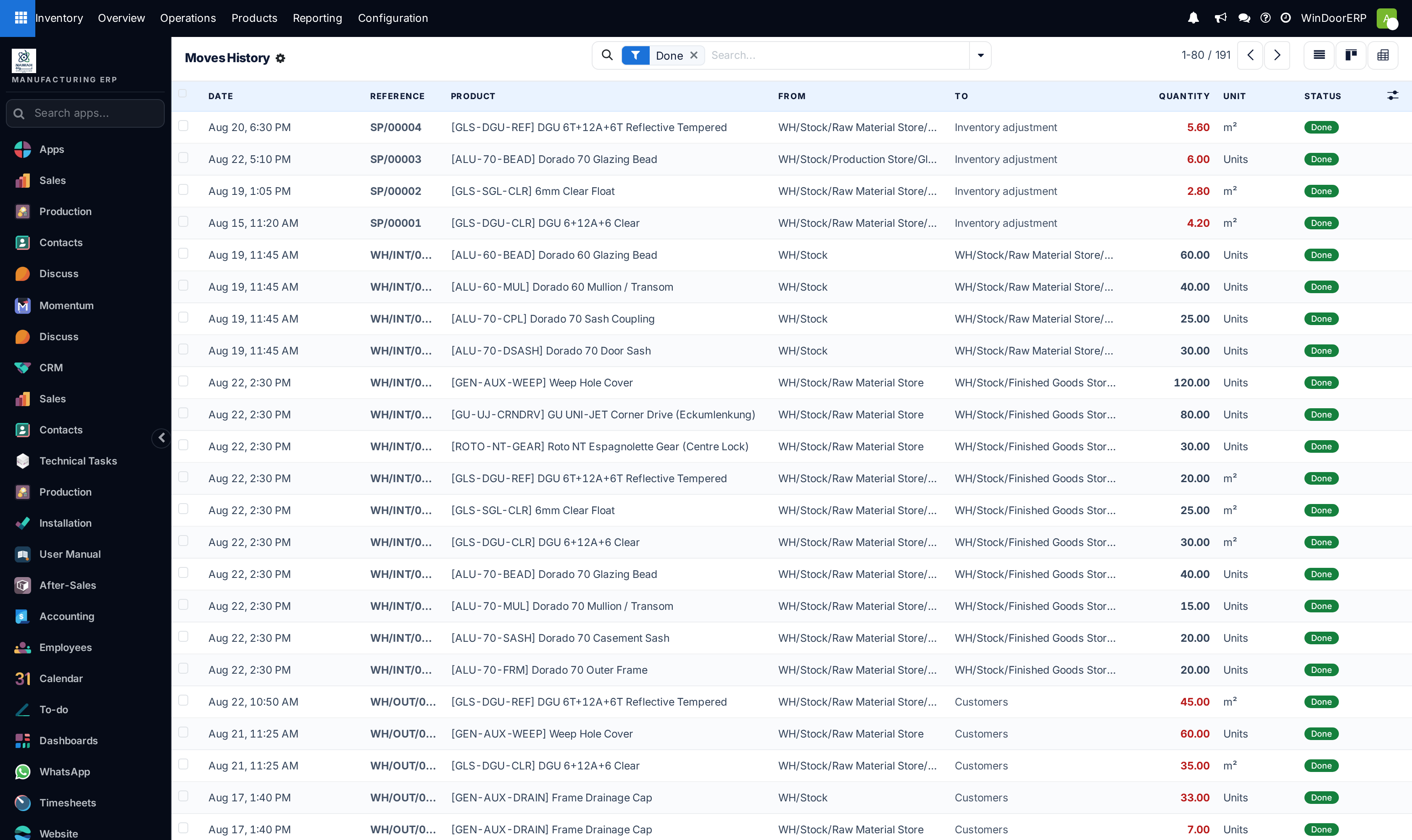
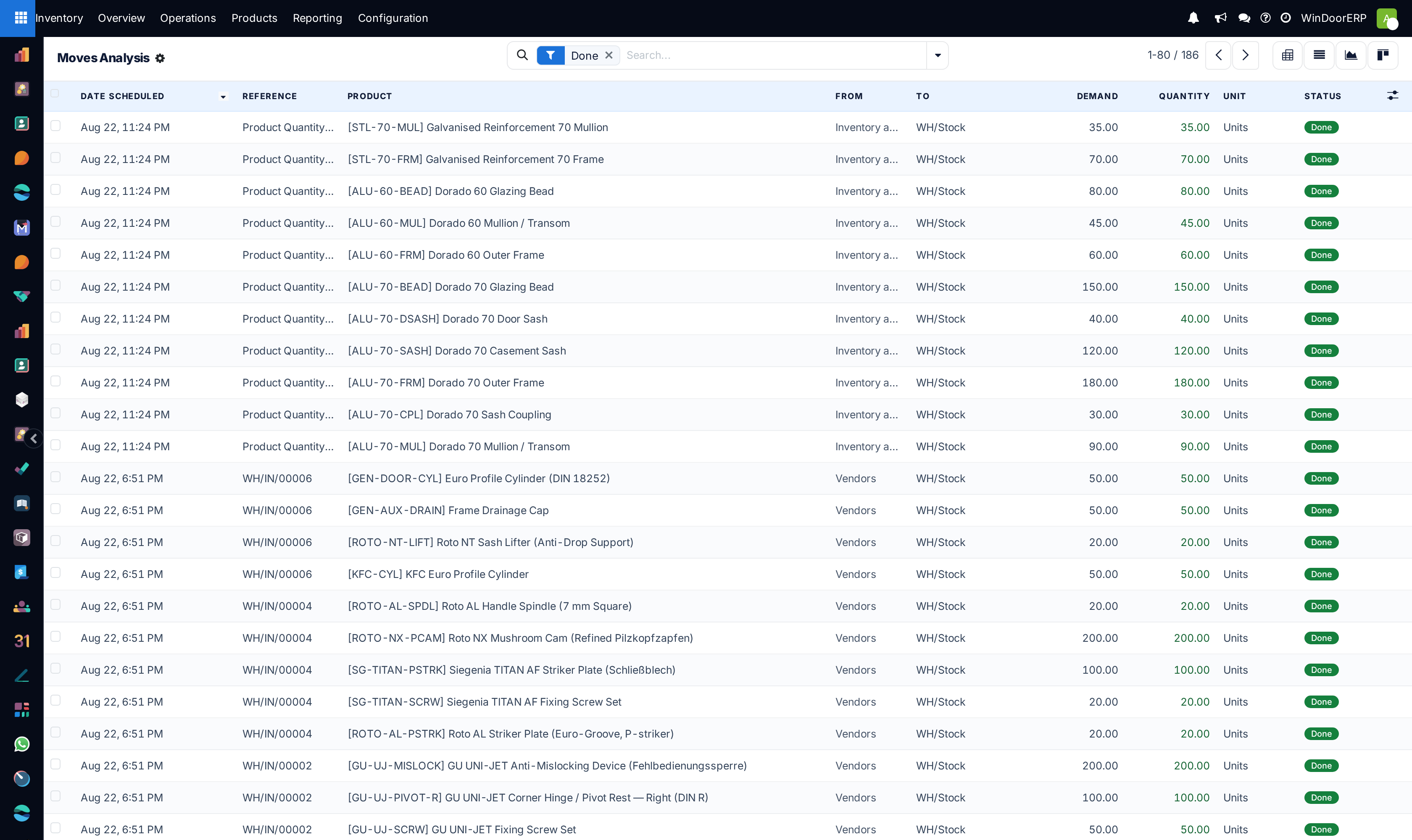
Two sibling reports give a product's full paper trail. Inventory › Reporting › Moves History is the fine-grained one — one line per move line, exactly what physically went from where to where, when, by whom — and the screen to answer "trace every movement of this product". Moves Analysis is its planning-level sibling: one line per stock move, demand versus done quantity — and the only reporting list with per-move Value columns.
Before you start
- The Inventory Manager role — the whole Reporting menu is manager-gated.
- Both screens are read-only trails: records exist because operations were validated, and neither list can create anything.
Steps
-
01
Open Inventory › Reporting › Moves History. It opens filtered to Done — the things that actually happened, newest first.
-
02
Search the product. That plus the Done filter is the product's movement trace. (The shortcut: the Stock report's per-row History button lands here pre-filtered.)
-
03
Read a line: date, the Reference (colour-coded — green receipts, blue deliveries, orange adjustments, red scraps), product, From and To, and the quantity, red when it left internal stock and green when it entered.
-
04
Click a line to open the document behind it — the transfer, adjustment or scrap itself.
-
05
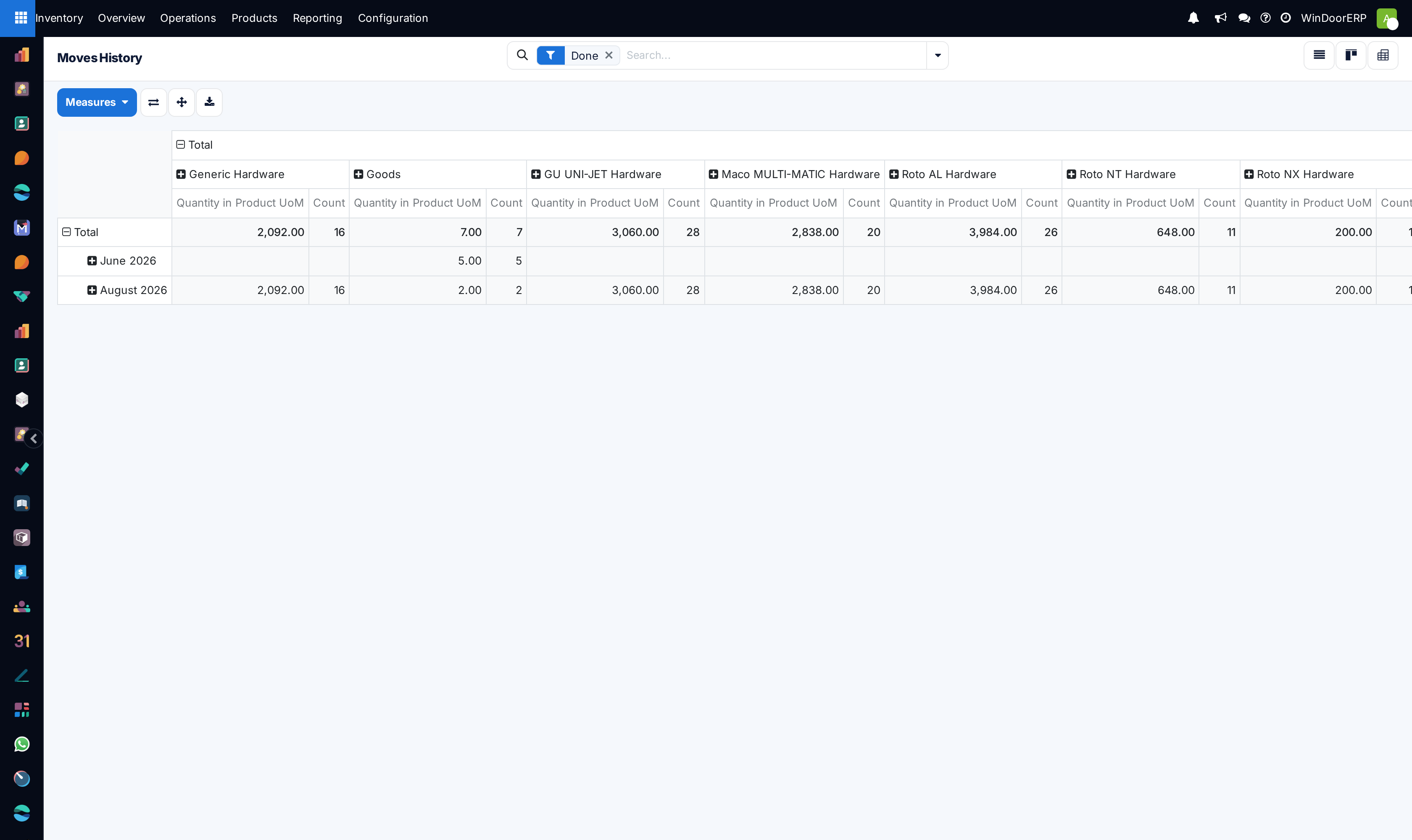
Switch to the Pivot for quantities over time — by month, by product, by location — or the kanban for a card feed.
-
06
For quantities with value, open Reporting › Moves Analysis: enable the Value (and Remaining Qty / Remaining Value) columns from ⚙, and use its Remaining filter to see receipts not yet consumed by valuation.
Which report answers what
| Question | Report |
|---|---|
| "Show me everything that happened to this profile." | Moves History, product search + Done. |
| "How much moved per month / per location?" | Moves History › Pivot (quantity and count measures). |
| "What was this receipt worth, and how much of it is still in stock?" | Moves Analysis with the Value / Remaining columns. |
| "What was demanded versus what was actually moved?" | Moves Analysis — Demand and Quantity side by side. |
| "What is still planned rather than done?" | To Do on either list; Ready exists only on Moves Analysis. |
Note
Moves History carries no value column — it is a quantity trail; money lives in Moves Analysis. And Moves Analysis offers list and form only: the pivot for time-series analysis is Moves History's. Neither is a mistake; they split the job.
Troubleshooting
| A movement is missing from the trace | It has not been validated — the Done filter hides planned work. Switch to To Do to see it waiting. |
|---|---|
| The dates look wrong for night-shift work | Dates are timestamps in your timezone; check the user's timezone setting before blaming the trail. |
| No pivot on Moves Analysis | By design — use Moves History's pivot for aggregation, Moves Analysis for values. |
| Red lines everywhere in a product's history | Red references are scraps; red quantities are ordinary outgoing moves. Read the reference colour and the quantity colour separately. |
| Value columns are empty-looking on Moves Analysis | They are optional-hidden — enable them from ⚙. Remaining value applies to incoming moves; deliveries show value only. |
Common mistakes
- Auditing from the transfer documents instead of Moves History — a transfer can carry many products; the history line is the per-product truth.
- Summing Moves History quantities without direction — incoming and outgoing lines both count positive; group with the Incoming/Outgoing filters, or use the pivot.
- Tracing serialized finished windows here and wondering where the per-piece story is — piece-level tracing (who scanned what, when, at which station) lives in Production's Piece Scans, not in stock moves.
- Expecting money in Moves History — quantity trail only; switch reports.
Checkpoint
You can produce the full history of one lot, from receipt to the job it was consumed by.