Decide how each material is replaced
Set the reordering rules
Why this step
The longest article on this path and the one worth reading twice. A minimum, a maximum and a lead time decide when the system buys for you — set them from real consumption, not from a feeling about a busy month.
What this does
A reordering rule keeps a product between a floor and a ceiling without anybody watching it. When the forecast falls to the minimum, the system raises the request for quotation that brings stock back to the maximum — on its own for automatic rules, or as a suggestion on the replenishment report for manual ones.
Before you start
- On the product, Product Type must be Goods with Track Inventory ticked — otherwise there is no stock level to react to.
- The Purchase checkbox is on, and at least one vendor sits on the product's Purchase tab. The top vendor is the one used unless the rule names another.
Steps
-
01
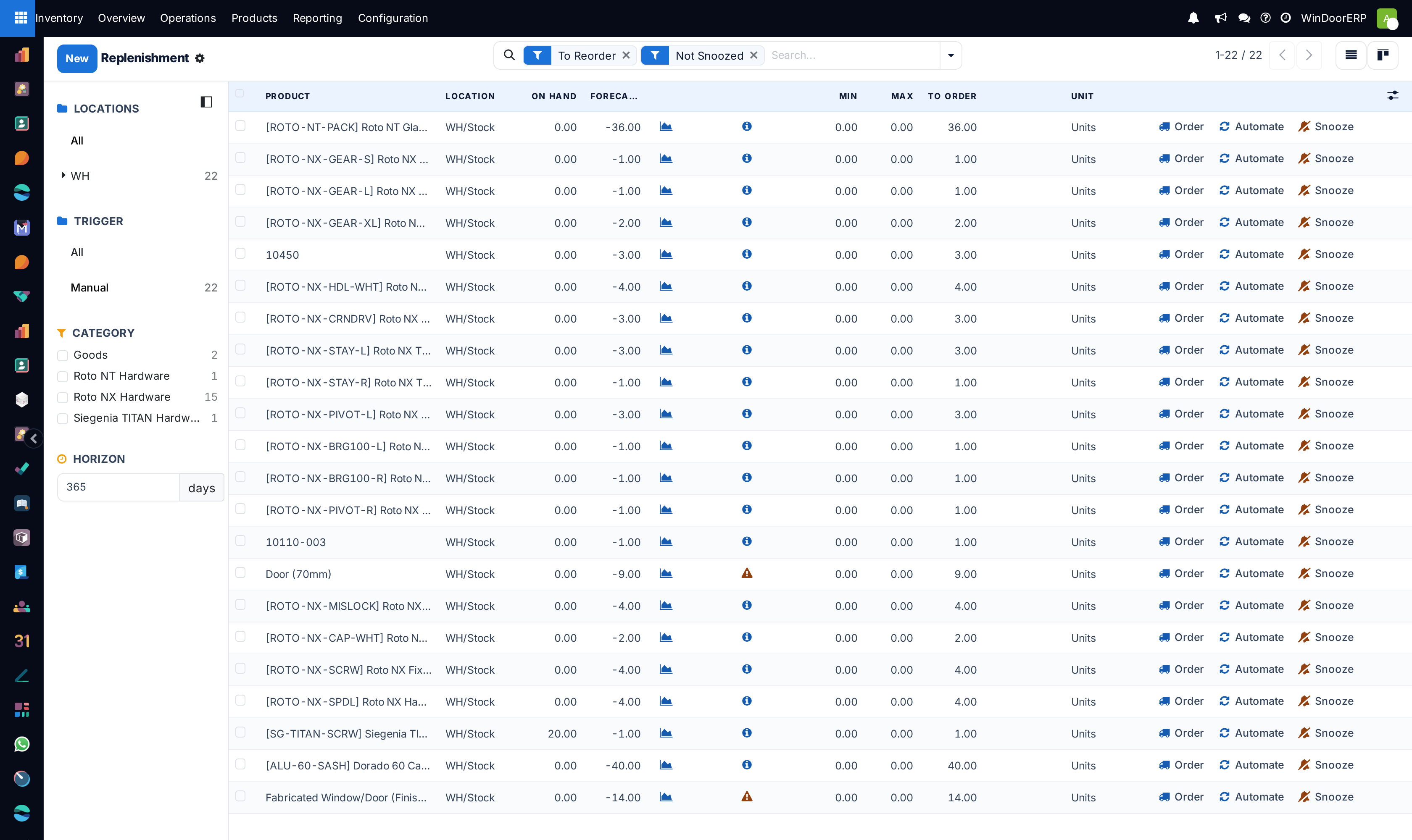
Go to Inventory › Operations › Procurement › Replenishment and click New — or open the product and use its Reordering Rules smart button, which shows the same rules with the Trigger column already visible.
-
02
Choose the Product.
-
03
Enter Min: the level you never want to go below, which is normally what you consume during the supplier's lead time.
-
04
Enter Max: the level to refill to.
-
05
Set the Trigger — Auto to let the rule order by itself, Manual to have it suggest on the report instead. Rules created from the replenishment report default to Manual; rules created from the product default to Auto.
-
06
Save. The rule shows the product's On Hand and Forecast, and a To Order quantity appears the moment the forecast is below the minimum.
The hidden columns
Extra columns are revealed with the (adjust settings) icon at the right of the column titles:
| Column | What it does |
|---|---|
| Trigger | Auto orders by itself; Manual waits on the replenishment report for a person. |
| Route | How to replenish. On this system that is Buy, or an inter-warehouse supply route where one exists; with nothing set, the greyed placeholder shows the route the rule will use. |
| Vendor | Forces a particular supplier for this rule. Empty, the product's first-listed vendor is used — the greyed name shows who that is. |
| Multiple | A unit or packaging the order is rounded up to — gaskets in 50-metre rolls, screws in boxes. Unset, no rounding. |
| Deadline | The date the order must be placed by to avoid dipping below the minimum, lead times counted in. Red means you are already late. |
Two warnings appear on the lines themselves: a yellow triangle on the chart icon means receipts already scheduled will push you over the maximum (check the forecast before ordering more); a yellow triangle on the info icon means the product has no way to be replenished — usually a missing vendor.
Automatic or manual
- Auto — the order is created on its own, either when the nightly scheduler runs or immediately when a confirmed sale drops the forecast below the minimum. Convenient, and blind.
- Manual — the need is listed on the replenishment report and waits for somebody to press Order. Slower, and it lets you adjust the quantity and consolidate several needs into one delivery. On manual rules the To Order field is editable; an undo arrow puts the computed quantity back.
The Automate button on a manual line does both at once: it places the order and converts the rule to automatic — the natural end of a trial period. In developer mode, Inventory › Operations › Procurement: run scheduler forces the nightly run early — and runs every other scheduled action with it.
Order in whole packs
The Multiple field rounds the order up to a sellable unit. If gaskets come in 50-metre rolls, set the multiple to the roll and the order will never be for 32 metres. The quantity is rounded up, so the maximum can be slightly exceeded — the excess-stock warning tells you when scheduled receipts overshoot.
Hold nothing: the 0/0 rule
An automatic rule with Min and Max
both 0.00 buys exactly the shortfall each time confirmed
demand pushes the forecast negative, and keeps nothing on the shelf. It
looks like make to order, with one difference: the arriving units are
not reserved for the sale that triggered them, and the documents
are not linked — several orders' worth can consolidate into one RFQ. Use
it when the item is generic; use make to order when the unit belongs to
that customer.
Where the numbers come from
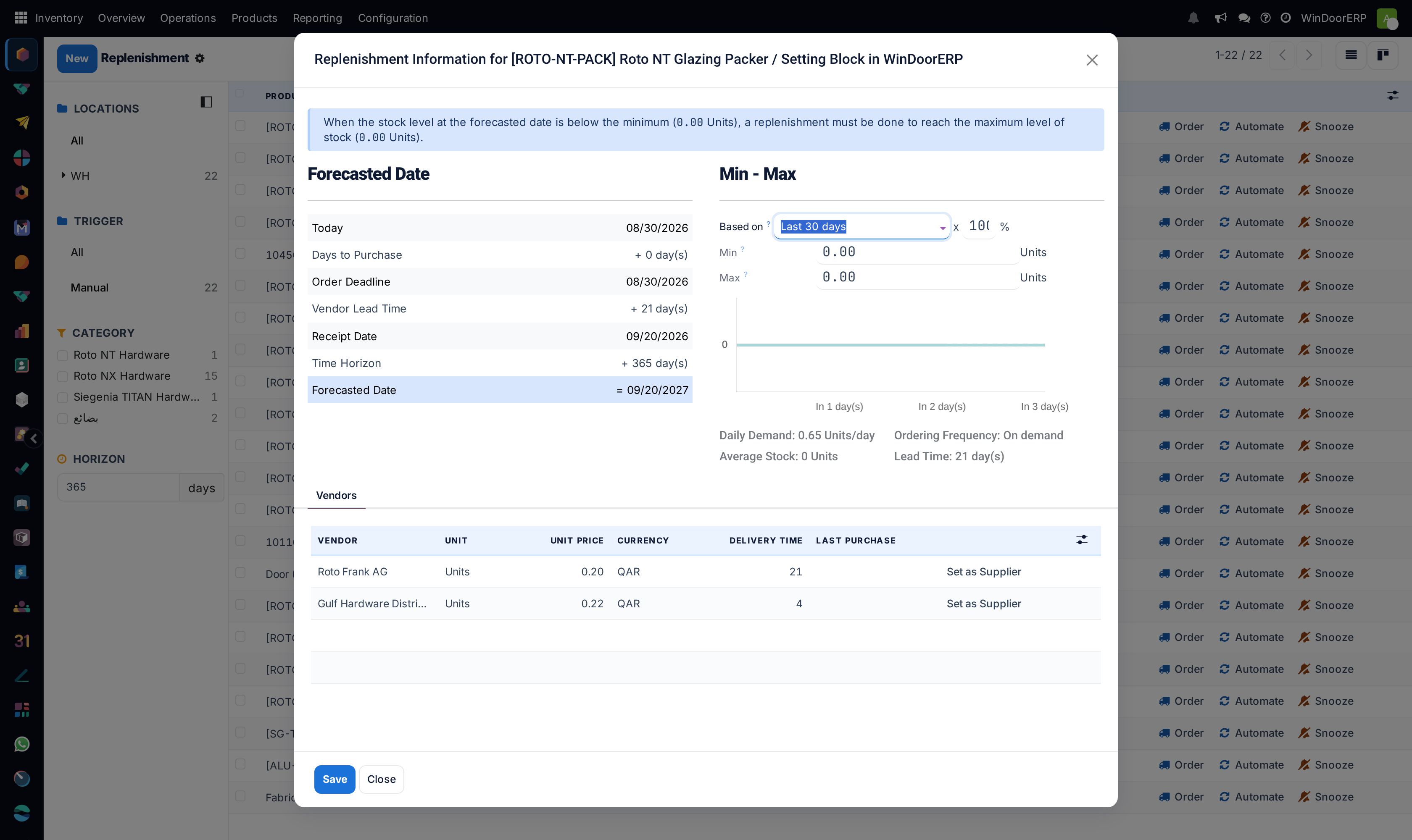
The Forecast is not today's stock: it is stock plus everything scheduled in, minus everything scheduled out, within the rule's lead time plus the company's replenishment horizon. When it reaches the minimum, To Order is whatever brings it back to the maximum, less what is already on order, rounded up to the multiple. The Deadline works backwards from the first day the level would dip below the minimum, minus the lead time. The info icon on each line opens the full arithmetic — lead times, the forecast graph, and suggested levels based on past consumption; the next topics cover that popup and the report's timing logic.
Troubleshooting
The rule never fires — read Forecast, not On Hand: an incoming purchase already counts, so no new order is needed.
Orders go to the wrong supplier — auto rules on products with several vendors buy from whoever tops the vendor list; set the rule's Vendor column to force the right one.
A yellow warning says the product cannot be replenished — the product has no vendor (or its route is gone). The rule can compute a To Order quantity but pressing Order will fail until the vendor list is completed.
Quantities keep overshooting the maximum — that is the Multiple doing its job, or receipts already scheduled; the excess-stock warning and the forecast report tell you which.
Common mistakes
- A minimum that ignores lead time. If the profile takes three weeks, a minimum of one week's use is a stoppage waiting to happen.
- Auto rules on products with several vendors and no vendor set — orders go to whoever is top of the list.
- Rules protecting a location nobody picks from, so the stock builds up where it is not needed.
Checkpoint
Falling below the minimum on a stocked material raises a replenishment request by itself.