Move it between sites
Allocate what arrives to who is waiting
Why this step
A lorry of profile arrives and three jobs are waiting on it. Allocation decides which one gets it — deliberately, by priority, rather than by whichever supervisor reaches the rack first.
What this does
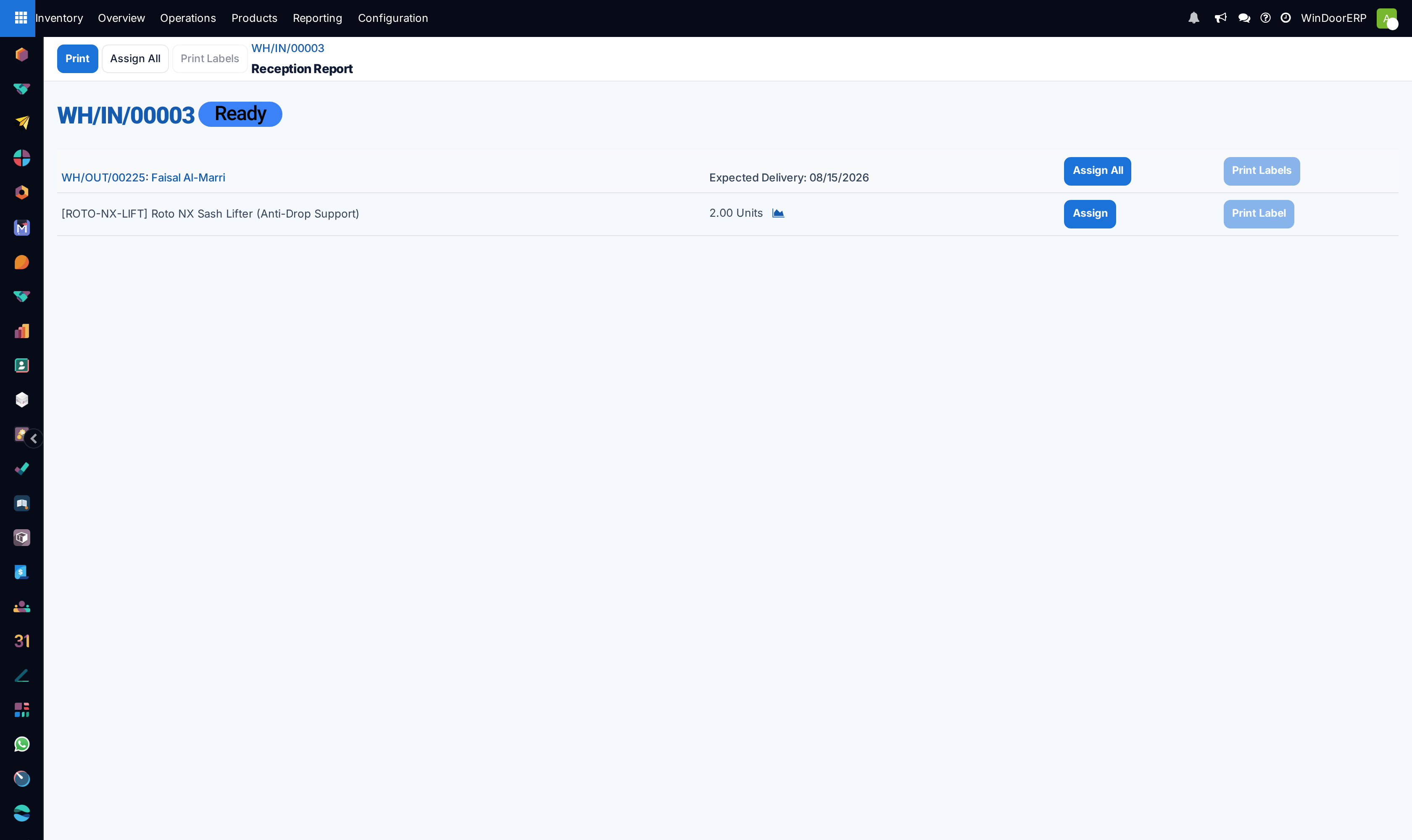
When one delivery from a supplier is wanted by three customers, the reception report decides who gets it. You assign the arriving units to specific orders instead of letting first-come-first-served do it for you — and you can print a label per unit naming the job it belongs to.
Before you start
- Enable Reception Report in Inventory › Configuration › Settings, under Operations.
- The product must be of type Goods with Track Inventory on, and purchasable.
- Orders that can already be served from stock never appear in the report — it only shows demand waiting on a delivery.
Steps
-
01
Confirm the sales orders that need the goods.
-
02
Raise and confirm the purchase order that replenishes them.
-
03
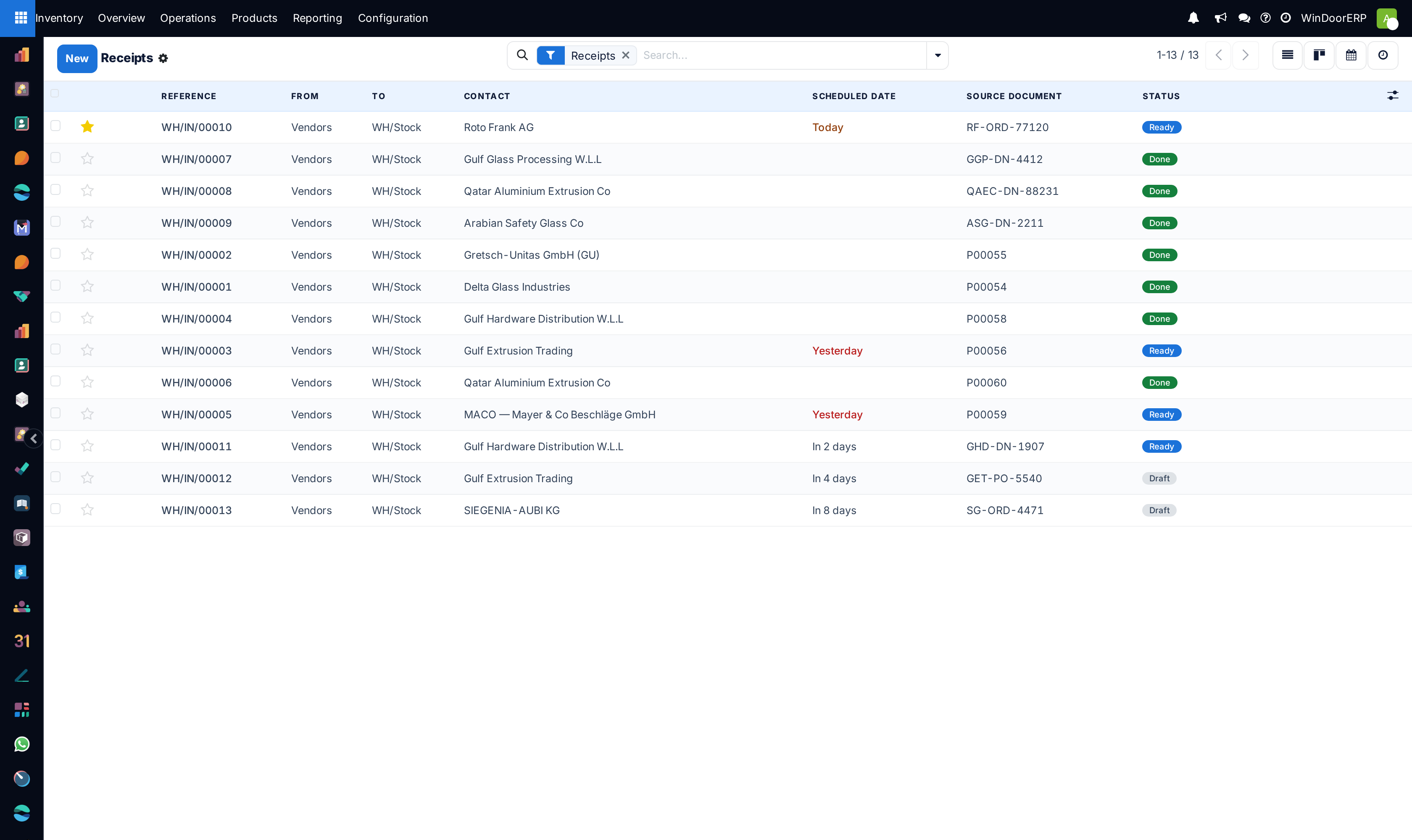
Open the receipt from the purchase order's Receipt smart button.
-
04
Click the Allocation smart button on the receipt to open the reception report.
-
05
Click Assign on a line to give those units to that order — or Assign All on an order's row for all its products, or the Assign All button at the top for everything. Unassign undoes it.
-
06
Click Print Labels for one label per allocated unit — product, order number, customer — then validate the receipt, and later the deliveries.
How the report decides what it offers
Each waiting order is listed with its Expected Delivery and its demanded products; reservable quantities are computed down the list, so what the first order takes is no longer offered to the second. The list is ordered by when each delivery is scheduled to reserve its stock, with starred (priority) deliveries ahead of their date-mates — not simply by age. To push a job up the queue, star its delivery, or simply assign the units by hand: an explicit assignment always wins.
Assigning links the documents both ways — the sales order gains a Purchase smart button and the purchase order a Sale one — and the assigned units are reserved for that delivery once received. Unassigning before validation releases them back to the pool.
Steering a shipment between orders
Because reservable quantities cascade, freeing units in one place makes them available in another: assign the slow job to the later shipment first, and the earlier shipment's units become free to assign to the urgent job. Two receipts, four orders — a minute of assignment decides exactly who waits.
Label the goods as they land
Print gives the report as a PDF with a scannable barcode for the receipt and for each delivery with allocated units. Print Labels gives one label per unit, naming the product, the order and the customer — which is what stops an allocated unit being picked for somebody else at the racks.
Troubleshooting
No Allocation button on the receipt — either the Reception Report setting is off, or nothing is waiting: demand that stock on hand can already serve is not listed.
An order you expected is missing from the report — its delivery can be fulfilled from existing stock, or its product is not tracked. Only tracked demand waiting on supply appears.
The urgent order is listed second with nothing left to assign — unassign the earlier order's units first, or star the urgent delivery and reopen; while the goods are not yet issued, the assignment is yours to redistribute.
Labels printed blank of order names — the units were not assigned when you printed; assign first, then Print Labels.
Common mistakes
- Allocating before confirming the purchase order — there is nothing to allocate yet; the report reads confirmed receipts.
- Assigning everything to the oldest order out of habit when a later one is the urgent site.
- Assigning units and then not printing labels, so the store issues them to the first job that asks.
Checkpoint
Arriving stock is assigned to the orders waiting for it, and nobody takes material off a rack it was promised to.