Book, dispatch and approve pre-quote and production surveys
What this does
WindoorERP keeps two kinds of site survey, on purpose. A Pre-Quote Survey (numbered PQS-YYYY-NNNN) is the first visit: the surveyor invents the item list on site, measures each opening, and the result prices the quotation. A Production Survey (PRS-YYYY-NNNN) comes after the order is won: its items are loaded from the confirmed sale order, each opening is re-measured against what was sold, and its approval is the gate that releases quantities toward manufacturing. Both hang off a technical request and live under Technical Tasks › Site Surveys › Surveys.
A survey is never created from a list. It is booked — from the Technical Work tab of an opportunity or order, or from the request itself — and booking asks who goes and when. A survey booked without a surveyor waits in an unassigned pool: the office is reminded to assign it, the Dispatch board lists it, and a field surveyor of its team can take it from the Field Portal.
Before you start
- The survey belongs to a technical request; the requests topic of this chapter explains how a request and its visit are raised in one dialog.
- With the Survey User right you see the surveys assigned to you plus the unassigned drafts of the pool — not a colleague's surveys. Survey Manager sees every survey, and only a survey manager may approve or reject one.
- For a production survey, the sale order is confirmed — its items are the survey's baseline.
From booking to quotation
-
01
Book the visit: Request Site Survey on the opportunity or order, or Schedule Pre-Quote on an existing request. Name the surveyor, or leave it empty to put the visit in the pool.
-
02
If it went to the pool, a dispatcher assigns it from Site Surveys › Surveys › Dispatch, or a field surveyor of the team presses Take this job in the Field Portal. The request moves on to the stage mapped for an assigned surveyor.
-
03
On site, press Start Survey — or Mobile App for the touch capture screen. Add each opening with Add New Item: pick the Floor and Location, type width and height in millimetres, and the item code is minted automatically from the floor code (floor 1, item 5 →
105). -
04
Mark each finished item Done, then press Complete Survey. Within the approval threshold the survey lands in Completed; beyond it, in Pending Approval for a manager's Approve or Reject. Once finished, the request moves to Office Processing (or Completed, depending on Survey Settings).
-
05
Press Create Quotation, choose the Profile and Outside Color (plus inside colour, glass, accessories as needed) and confirm — one quotation line per surveyed item, with the survey PDF attached to both records. Creating it completes a request waiting in Office Processing.
-
06
Once the order is won, Request Production Measurement: the items arrive pre-filled from the order. Re-measure, complete, and have the manager Approve — approval writes the measured quantities back to the order and unlocks Create Production Order.
Who does the survey: teams, the pool and dispatch
A survey's team is, in order: the team set on the survey, the team of its request, the default team for that kind of survey in Survey Settings, or none. The people who may be given a survey are the active users holding the Survey User right or marked as field surveyors, in the survey's company. Only a team somebody actually chose — on the survey or on its request — narrows that list to the team's members and leader; the default team from the settings does not, and neither does a team whose members and leader include nobody who could do the survey.
Deciding who does a survey is a dispatcher's job. Survey managers and system administrators dispatch every survey; a team leader dispatches the surveys of the teams they lead; the technical manager named in the settings dispatches the surveys whose team has no leader or that have no team. Anybody else may still take an unassigned survey for themselves — by choosing themselves as Surveyor, or with Take this job in the Field Portal — and may give back one of their own.
| Event | What the system does |
|---|---|
| A survey is booked without a surveyor | An activity "Assign a surveyor for …" goes to the team leader, else the configured technical manager, else every survey manager of the company, and the chatter notes that the survey waits for dispatch. The reminder is not repeated while it is open. |
| Nobody assigns it in time | An hourly job sends every survey manager of the company a to-do "Survey still unassigned: …" once the survey has waited longer than Escalate Unassigned After (hours) (default 4). Each survey is escalated once; zero switches the escalation off. |
| A surveyor is assigned or takes it | However the surveyor is set — a booking or assign dialog, the survey form, a list, or Take this job in the Field Portal — the reminders are removed and the request moves to the stage mapped for an assigned surveyor. Taking from the pool is logged in the chatter. |
| A surveyor hands it back | From the Field Portal (Hand back to the pool, with a reason) while the survey is in draft or in progress: it returns to draft without a surveyor, the reason is posted, the office is reminded again, and a Handed back to the pool event appears under Reported from Site. |
| The survey is cancelled | The reminders are removed; resetting it to draft without a surveyor asks for dispatch again. |
With Assignment Mode set to Assign when booking only, the pool is switched off: an unassigned survey is simply not booked yet, nobody is reminded or escalated, and the Field Portal shows no open jobs, so surveyors cannot take work.
The Dispatch board
Site Surveys › Surveys › Dispatch lists every draft survey without a surveyor, oldest first, in one flat list — group by Team from the search when there are several crews. Columns: Survey Reference, Survey Type, Customer, Team, Scheduled Start and Waiting since, with the technical task, the sale order and the item count behind the column toggle. Each row has an Assign button, shown only when you may dispatch that survey, and an Open button.
Assign opens the Assign Surveyor dialog: the survey type (read-only) and, for a production measurement, its order, Scheduled Start, Team, Surveyor — only eligible people are offered, and when there is only one they are filled in — and a Note for the surveyor. Changing the team changes who is offered. Press Assign; the note is posted on the survey. When the board is empty it says so: every booked survey has somebody to do it.
Acting on several surveys
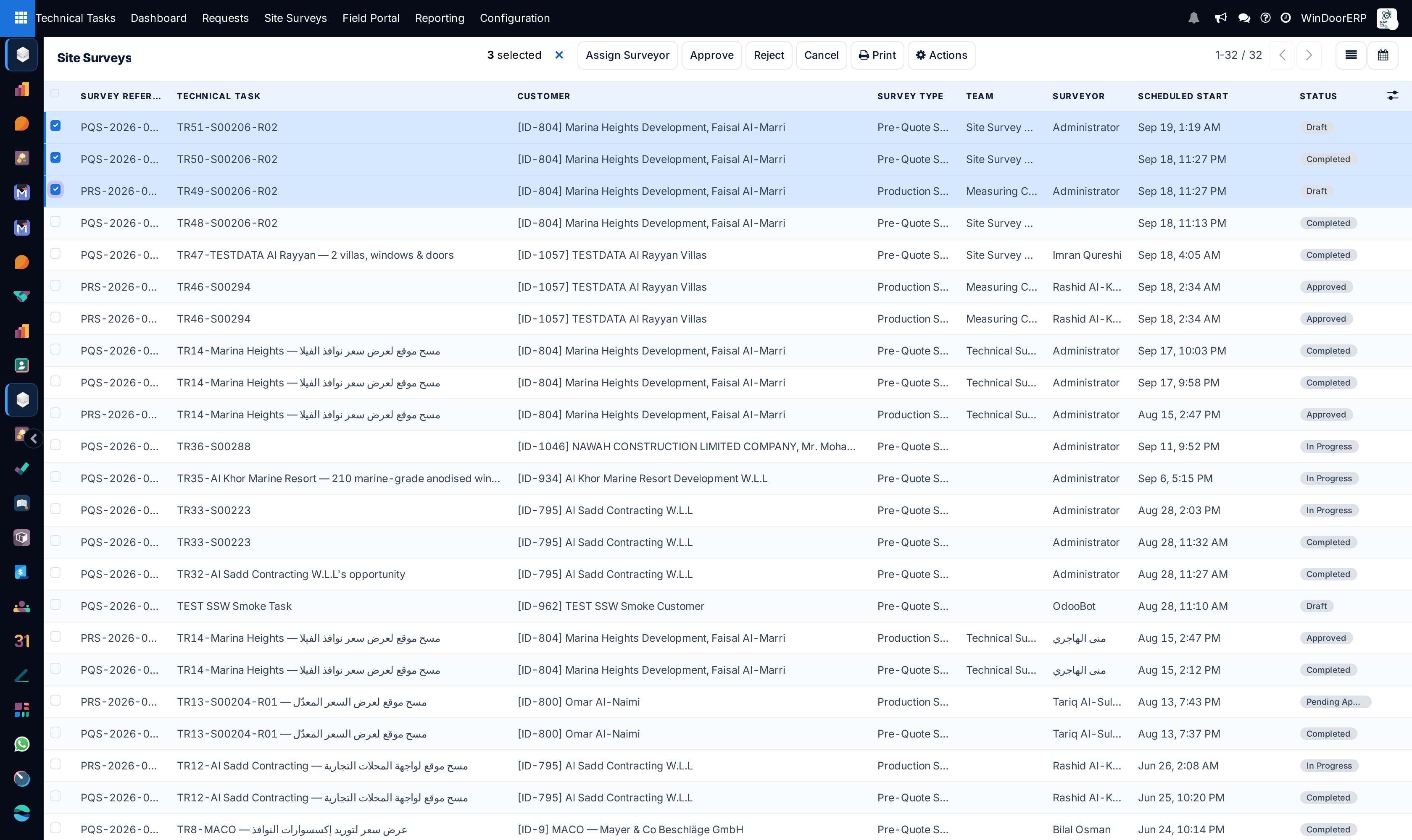
In All Surveys, Pre-Quote Surveys, Production Surveys and Pending Approval, tick one or more rows and the buttons Assign Surveyor, Approve, Reject and Cancel appear above the list; Approve and Reject only for survey managers. The Dispatch board shows Assign Surveyor and Cancel. The Actions menu adds Reset to Draft.
| Button | Effect and rules |
|---|---|
| Assign Surveyor | Opens Bulk Assign Surveyor: the Survey Count, one Surveyor (anyone eligible for at least one of the surveys), an optional new Scheduled Start, and the Selected Surveys. Press Assign. Each survey is checked as on the Dispatch board: you must be allowed to dispatch it, the surveyor must be eligible for it, and it must not be submitted yet — draft or in progress. |
| Approve | Asks for confirmation, then approves each selected survey that is pending approval through its own type's approval — a production survey posts its measured quantities to the sale order, exactly as the form button does. |
| Reject | Opens the Bulk Reject dialog on the selected surveys that are pending approval, says how many others are left as they are, and asks for a Rejection Reason. Reject All returns them to draft and posts the reason on each. |
| Cancel | Asks for confirmation, then cancels each survey. An approved survey stays approved and one already cancelled is reported. |
| Reset to Draft (Actions) | Brings cancelled surveys back to draft; anything else is refused. |
Each survey goes through the same step as its form button, on its own: one refusal does not undo the others. The result is reported in a notification that stays on screen when some surveys were left unchanged and names them with the reason; when every survey is refused, nothing changes and the error "Nothing was changed." lists why. The approval rule is enforced in the software itself, not only by hiding the buttons.
The Surveys menus
| Menu | Contents |
|---|---|
| All Surveys | Both types together, opened on the Not Cancelled filter. Opening a row always lands in the correct type-specific form. |
| Pre-Quote Surveys / Production Surveys | One type each, as list, kanban (cards grouped by state, with photo or design cover, progress bar and area badges), form and calendar. |
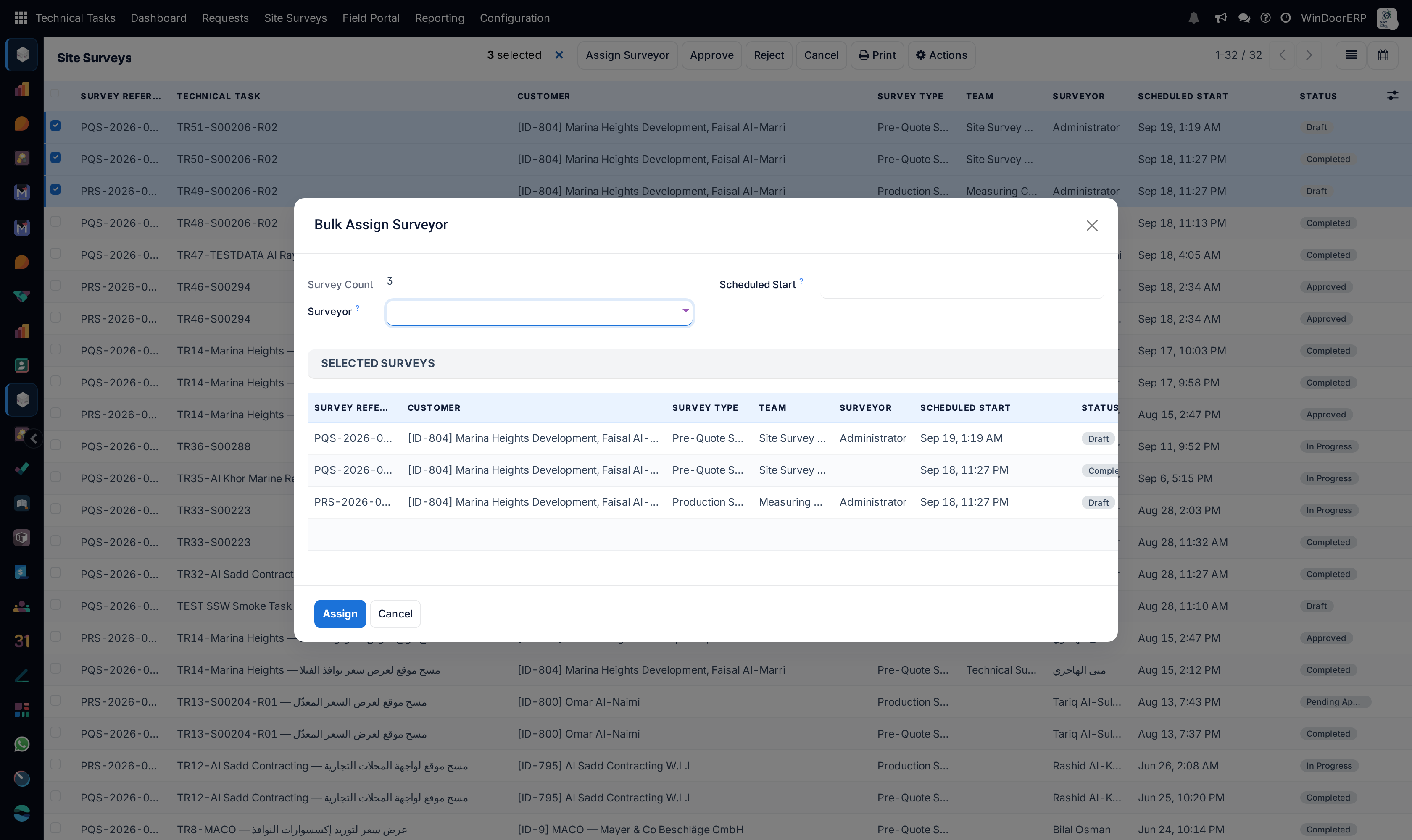
| Pending Approval | Everything waiting for a decision. Survey managers only — the menu is hidden from other users. |
| Survey Calendar | Both types on a month calendar by Scheduled Start, colored by type — the week plan of the measuring crew. |
| Dispatch | Draft surveys waiting for a surveyor, as described above. For survey users and managers. |
The survey lists have no New button: a survey typed in there would belong to no request and appear on no tab. The search offers Not Cancelled, Pre-Quote, Production; Waiting for a Surveyor and My Surveys; To Do (draft or in progress) and Late (still draft after its scheduled start); one filter per state from Draft to Cancelled; Has Not-Ready Items on production surveys; and the dates Scheduled Start, Completed Date, Approved Date and Created on. Group by Survey Type, State, Surveyor, Team, Customer, Technical Task, Scheduled Start or Created on; search by reference, technical task, customer, address, surveyor, team, or sale order with sales rights.
The survey life cycle
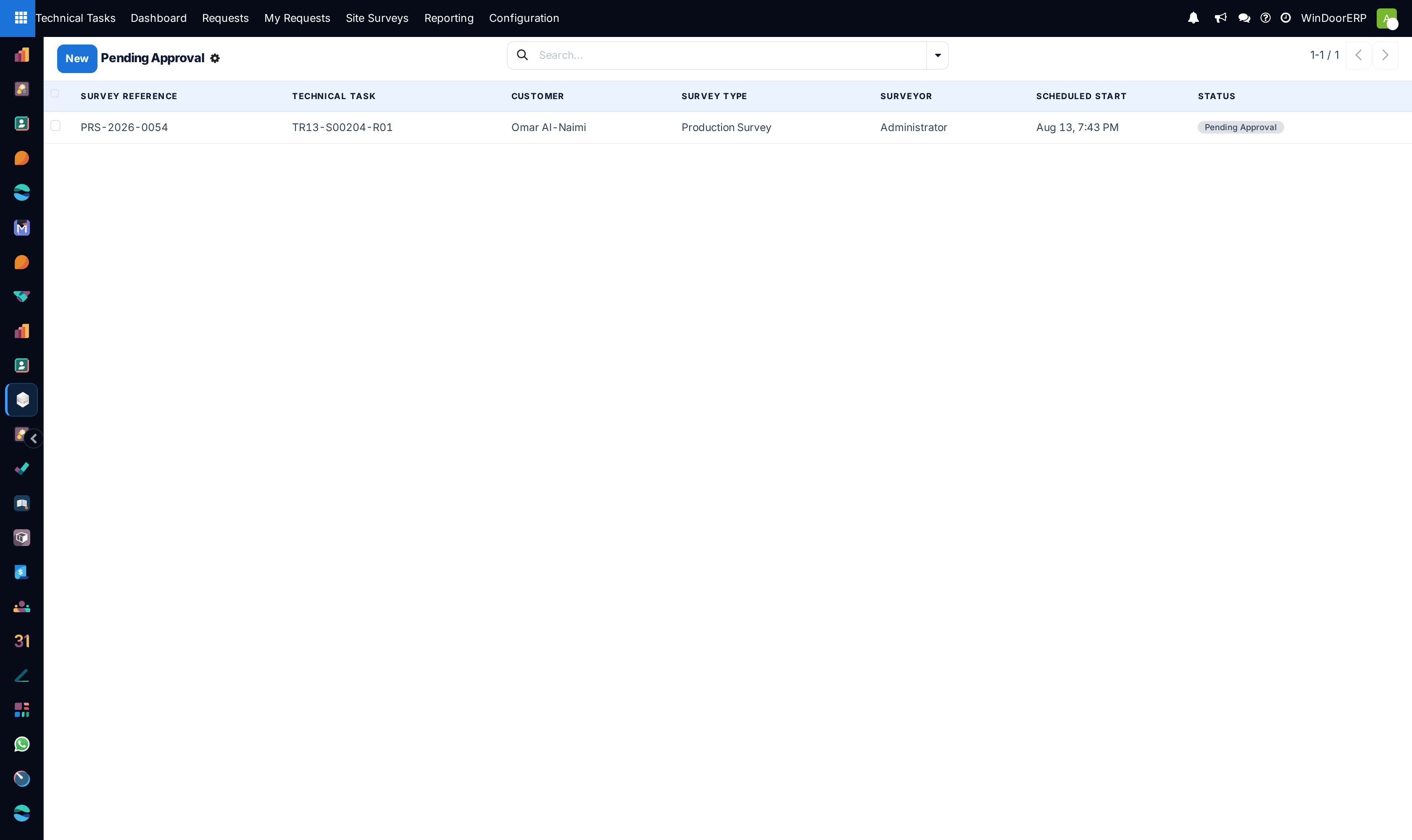
Six states: Draft › In Progress › Completed › Pending Approval › Approved, with Cancelled to the side. The header buttons enforce it strictly:
| Button | Rule |
|---|---|
| Start Survey | Draft only ("Survey can only be started from Draft state."). A production survey also refuses to start with no items: "Cannot start a Production Survey without any survey items. Please add items first or copy from a Pre-Quote survey." Starting records the actual start time and, from the mobile portal, the GPS position; the request moves to the stage mapped for a started survey. |
| Complete Survey | In Progress only. Records the end time, then routes to Pending Approval when approval is required, else Completed. Going to approval schedules a to-do — "Survey Approval Required", with the area difference — for every survey manager. |
| Approve / Reject | Pending Approval only, survey managers only — anyone else is refused with "Only a survey manager can approve or reject surveys." Reject returns the survey to Draft for corrections and closes the approval to-dos. |
| Cancel | Any state except Approved ("Cannot cancel an approved survey."). Removes the dispatch reminders. |
| Reset to Draft | Cancelled only. A survey without a surveyor asks for dispatch again. |
When is approval required?
Two rules, both from Configuration › Site Surveys › Survey Settings: every production survey requires approval while Require Production Approval is on (the shipped default), and any survey requires approval when its total surveyed area differs from the quoted area by more than the Approval Threshold (%) (default 5).
What approving a production survey does
Approval is not a formality. For each completed line linked to an order line it adds the Measured Qty to the order line's surveyed quantity, and writes the surveyed floor, location and sill height back onto it. The write-back runs exactly once per survey — a survey that has already posted its quantities will not post them again, even if the workflow is replayed. This is why re-opening approved surveys is not offered: corrections go through a new revision survey instead.
How the request follows its surveys
The request moves forward on its own, as mapped in Survey Settings: to Stage when Surveyor Assigned when a survey gets a surveyor, to Stage when Survey Started when it is started, and — once the survey is finished — to Office Processing or Completed. A pre-quote survey is finished when it is completed without needing approval, or approved. A production survey is finished for this purpose only when nothing on the order lines its order's surveys cover is still to be measured, so an order measured in batches keeps its request open until the last batch. A request already further along is never pulled back.
Reading the survey form
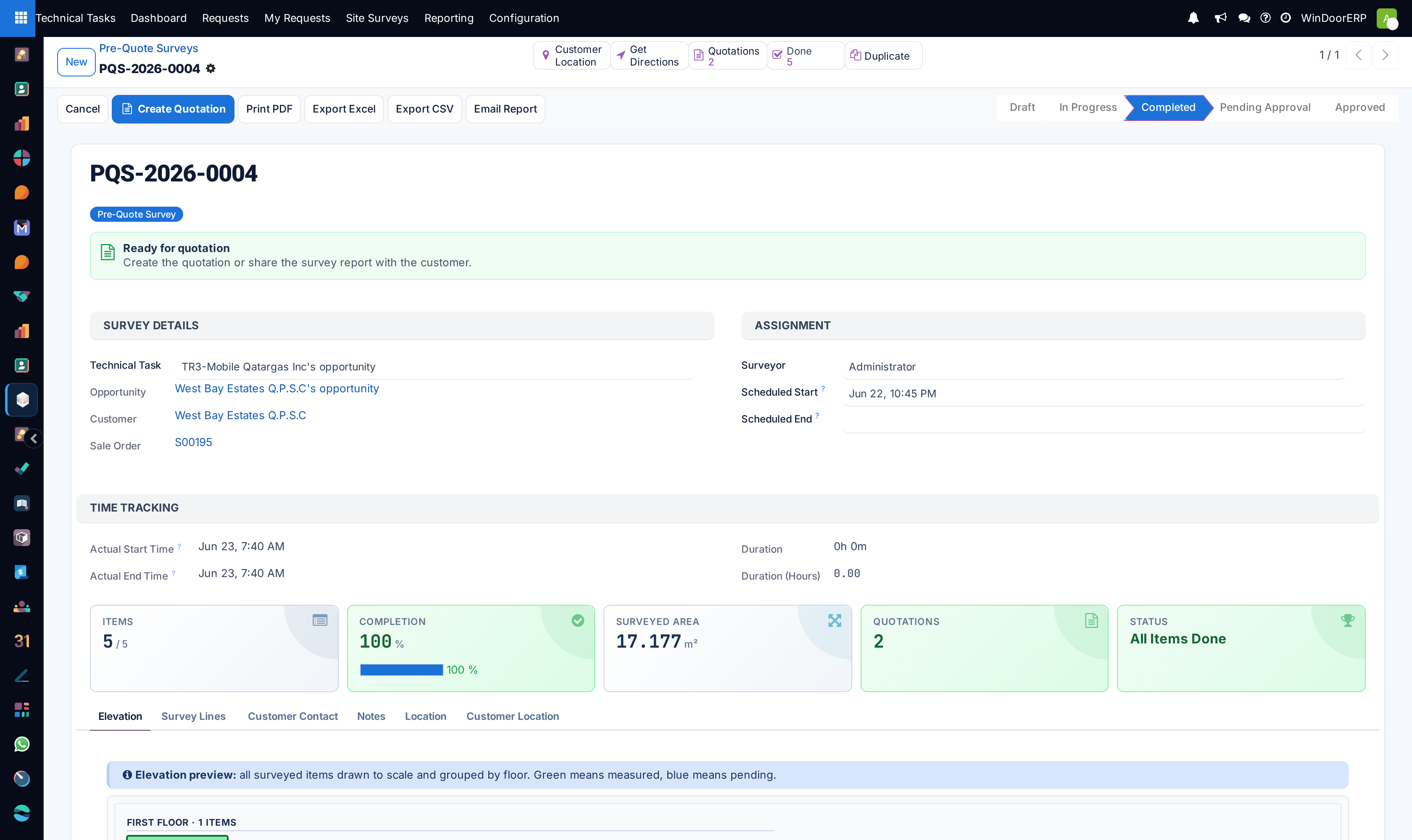
Both forms share the same skeleton: a guidance strip that always names the next sensible action ("Add the first survey item", "Continue measuring 3 of 5", "Waiting for approval"…), the Survey Details and Assignment groups, a Time Tracking group filled by Start/Complete, and a row of live tiles — items done, completion %, surveyed area, plus quotations (pre-quote) or quoted area, area difference and not-ready count (production). The tabs follow the fields below.
| Field | What it does |
|---|---|
| Technical Task, Opportunity, Customer | The request the survey belongs to, its opportunity (read-only) and the customer. |
| Sale Order | The order this survey measures. A pre-quote survey gets it when a quotation is produced from its request. Survey managers can change it while the survey is in draft, to the request's order, one of its quotations or an order of the same opportunity; everybody else sees it read-only. |
| Team | Starts from the request's team and can be changed per survey — a second measurement of the same order can go to another crew. It decides who can be given the survey and which team leader dispatches it. |
| Surveyor | Who measures. It is never filled in with whoever books the visit; empty means the pool. Only a dispatcher may give it to somebody else. |
| Scheduled Start, Scheduled End | When the visit is planned. They drive the Survey Calendar, the Late filter and the surveyor's day plan. |
| Tab | Contents |
|---|---|
| Elevation | Every item drawn to scale, grouped by floor — blue pending, green measured, amber site-not-ready. The same drawing appears on the PDF report. |
| Survey Lines | The measuring table (below). |
| Mobile View | On phones, cards per item with an Edit button into the touch capture app. |
| Customer Contact | The on-site representative and phone, and the customer and surveyor signature pads. |
| Notes | General notes and site-access instructions. |
| Location | The GPS start and end positions captured by Start/Complete, read-only. |
| Customer Location | The same map-and-QR geolocation suite as the technical request, sourcing coordinates from the opportunity first, then the customer. |
Header utilities on both types: Print PDF, Export Excel, Export CSV, Email Report (a dialog pre-addressed to the customer, with an optional Excel attachment), plus a Duplicate smart button that copies the survey back to Draft without times, signatures or approvals.
Measuring: the survey lines
A pre-quote line is deliberately lean: code, description, floor, location, Width and Height (mm), quantity, computed area, a Done toggle and the result badge. A production line adds the ordered reference — Quoted W/H and Quoted Qty — next to the measured values, a computed Diff %, the Not Ready toggle, and a scissors button to split multi-unit items.
Opening a line (the external-link button) reaches the full item form: three aperture width and three height measurements — the surveyed dimension is set to the minimum of what you enter — two diagonals, sill height, tangent points, the site-condition dropdowns (window position, drainage face, the four aperture finishes, opening section, threshold, scaffolding), the exhaust cut-out block, the fittings and finishes boxes, two photos, a voice note, freehand and CAD sketches, remarks, and the measurement provenance (typed, laser, or inherited from the quote, with device and timestamp).
Rules the lines enforce:
| Rule | Detail |
|---|---|
| Result badge | Pending until Done; then Pass when the area difference is within ±5%, Fail beyond it, Site Not Ready when flagged. The ±5% of the badge is fixed; the configurable threshold governs approval, not the badge. |
| Site Not Ready | Flagging an item marks it Done and demands evidence — completing it without a photo raises "Please upload a photo showing the site condition.", without a reason "Please provide a reason why the site is not ready.". The form shows a warning ribbon and a not-ready tile while any line is flagged. |
| Split Item | Splits a quantity line into individually measured openings named code-1, code-2… Up to 7 units it splits immediately, keeping one on the main line; above 7 a dialog asks how many to split off. Only in Draft or In Progress, and never for quantity 1. |
| Quantity warning | Measuring more than was ordered pops "Surveyed quantity (…) exceeds quoted quantity (…). Please verify this is correct." — a warning, not a block. |
Production extras
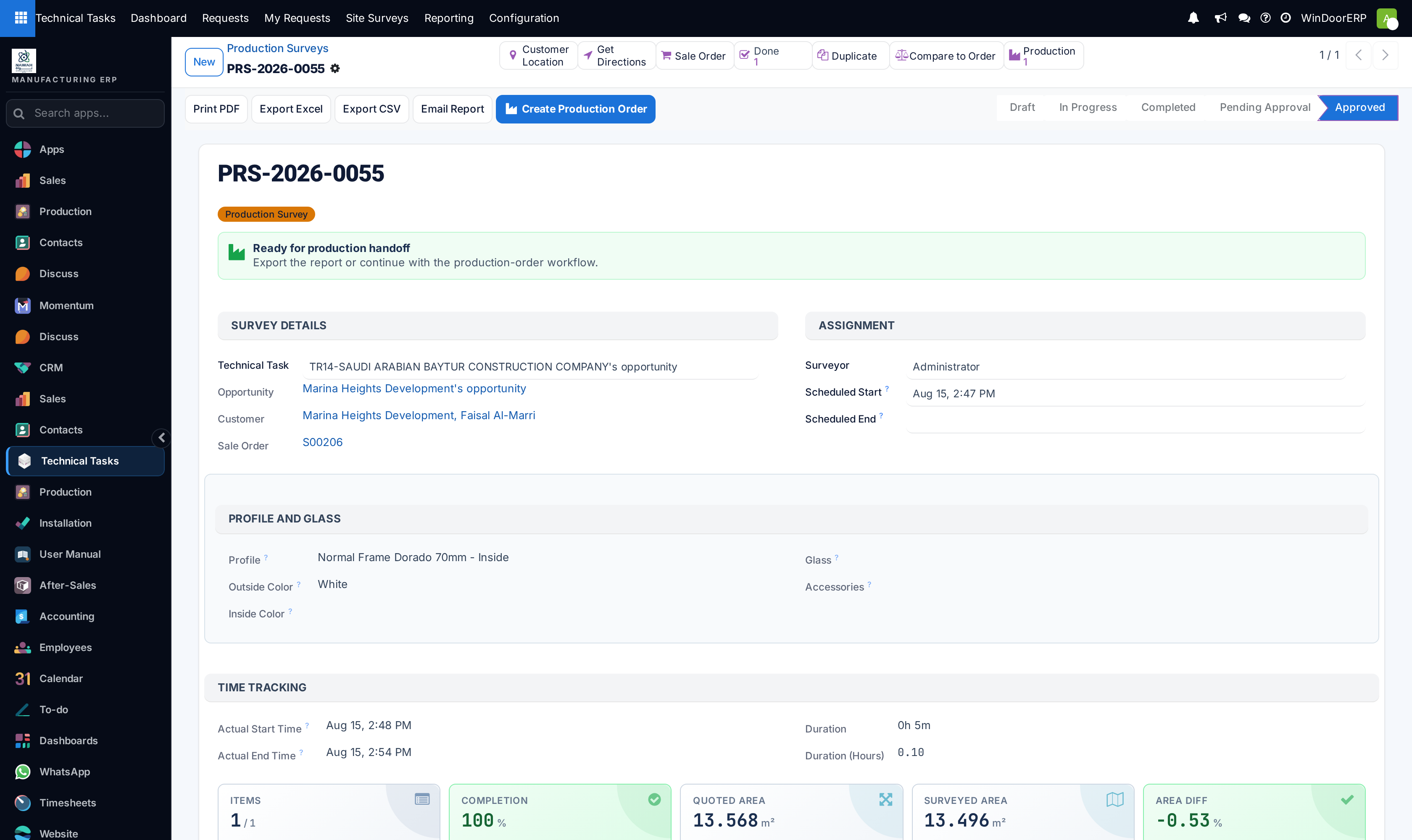
The production form carries the manufacturing hand-off. Copy from Pre-Quote (Draft, no items yet) pulls the pre-quote's measurements and site conditions as a starting point — never its photos or done flags. A read-only Profile and Glass group shows the order's profile, colours, glass and accessories. Each line shows the Production Design thumbnail and, for design-capable products, buttons to Create/Edit the production design in the designer and to view its Design Analysis. Compare to Order opens a read-only side-by-side of every item — ordered width, height, area and sill against surveyed — with totals and difference percentages.
Once the survey is Completed or Approved, Create Production Order builds a production order from the completed items: measured quantities, the item's production design and analysis (falling back to the sale-order line's design when the survey line has none — each fallback is noted in the production order's log). Items that are completed but did not Pass are still copied, with a chatter warning naming them so they can be removed by hand. A Production smart button counts the linked orders afterwards. When every finished measurement of the request has its production order, a request waiting in Office Processing is completed.
Troubleshooting
"Cannot start a Production Survey without any survey items." — the linked order has nothing left to survey (all quantities delivered) or the survey was created without an order; add items, or use Copy from Pre-Quote.
"Survey already has items. Please delete the existing items before copying." — Copy from Pre-Quote only fills an empty survey.
"No completed pre-quote survey found for this task." — the pre-quote is still in Draft or was cancelled; it must have been started to be a source.
"The survey must be Completed or Approved before creating a quotation." — finish the survey first; the Create Quotation button follows the same rule.
"No product found for: … configure the Color & Material mapping…" — the quotation wizard found no product for the chosen profile and colour on those items; complete the Color & Material mapping or set each line's product by hand in the wizard.
"No production survey found for comparison. Please create and complete it first." — Compare to Order was pressed from a pre-quote whose order has no started production survey yet.
"Only a survey manager or the team's leader can assign this survey." / "Only a survey manager or the team's leader can decide who does …" — you are not a dispatcher for that survey. You may still take an unassigned survey yourself or hand back one of your own.
"… is not a survey user of this survey's team." — the person is not eligible for the survey's team; change the team first or choose someone offered in the list.
"Only a survey that has not been submitted can be assigned." — completed, pending or approved surveys keep their surveyor.
"… does not belong to … or its opportunity, so this survey cannot measure it." / "This survey's items come from …" — the Sale Order you chose is not one of the project's, or the survey's items already belong to another order; book a new measurement for that order instead.
A surveyor cannot find a colleague's survey — survey users only see their own surveys and the unassigned pool; a survey manager sees everything.
"That survey is not available to claim." in the Field Portal — somebody else took the job first, or the company switched to Assign when booking only after the page was loaded. Reload the page.
An approved survey needs correcting — approved surveys are closed on purpose (their quantities are posted). Have the surveyor raise a re-visit request from the portal, or duplicate the survey; the duplicate starts in Draft with quantities unposted.
The survey went to Completed although you expected an approval step — the area difference is within the threshold and it is not a production survey with Require Production Approval on; check the Settings.
Common mistakes
- Cutting from pre-quote figures — only an approved production survey posts verified quantities toward manufacturing.
- Leaving Fail items unexamined before approving — approval posts their measured quantities like any other line.
- Letting the Dispatch board fill up because nobody owns it — a survey in the pool is a booked visit nobody is going to.
- Skipping the three-point aperture measurements on awkward openings — the minimum rule exists to keep the frame inside the real, out-of-square masonry.
- Measuring five identical windows on one line when they differ — split the item and measure each opening.
Was this article helpful?
Thanks — your feedback helps.
Running a window or door factory?
Ask for a demo