Work the report, not the panic
Find out why nothing was ordered
Why this step
The most useful troubleshooting article in the manual. A rule that looks right but never fires usually has one of a short list of causes — and knowing them turns a mystery into a two-minute check.
What this does
Explains the timing behind every replenishment suggestion: how far ahead the system looks (the horizon), how lead times push orders earlier, and why a confirmed order sometimes raises no purchase today. Read this when the report orders too early, too late, or apparently not at all.
The window the forecast looks at
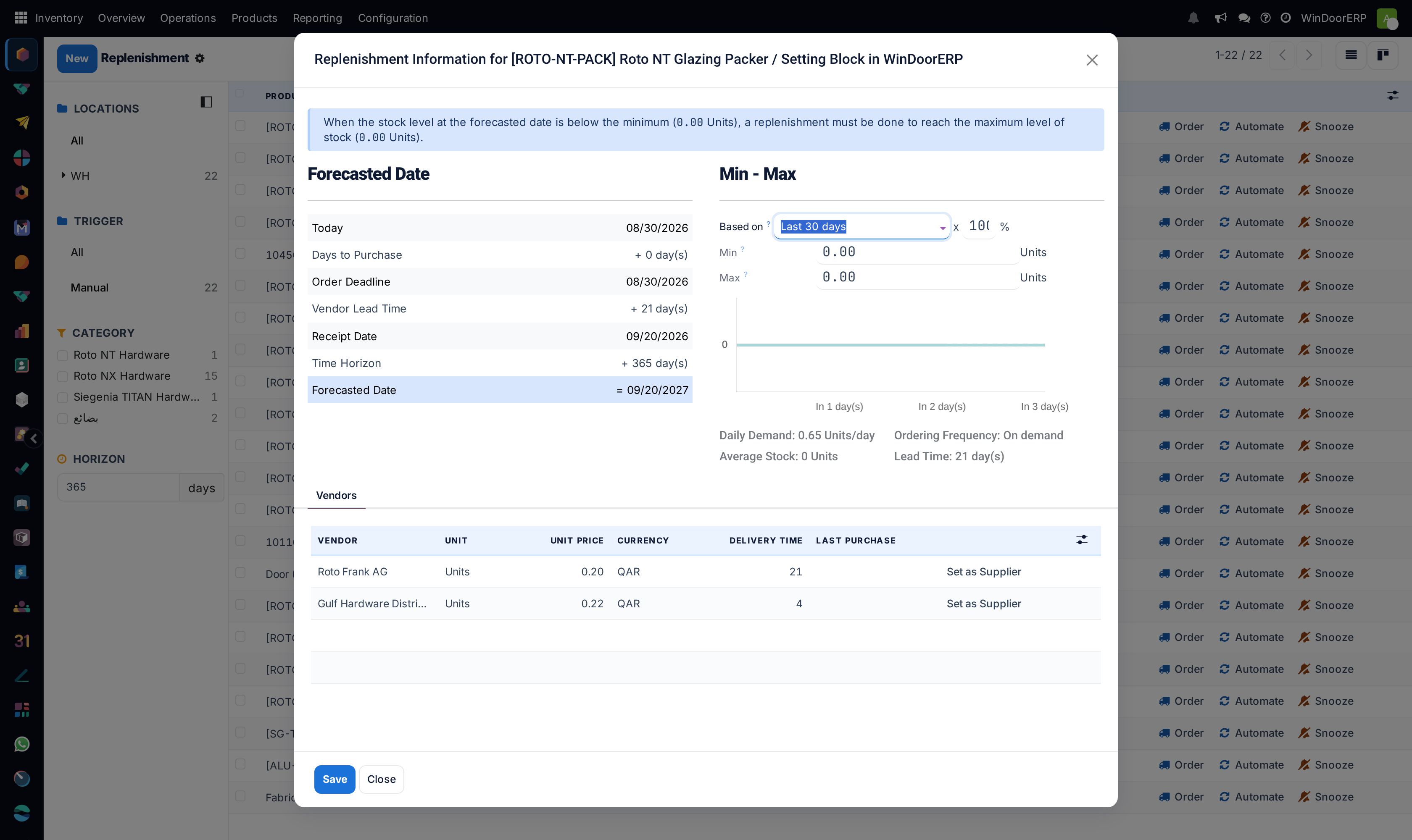
A reordering rule does not compare today's stock with the minimum. It compares the Forecast — stock plus everything scheduled in, minus everything scheduled out — computed over a window that ends at today + the product's lead times + the horizon:
- Lead times come from the replenishment route: the vendor's delivery time plus the purchasing security margins. They are always counted — an order that takes three weeks to arrive must be judged three weeks out.
- Horizon is your planning choice: how many days of further demand to take seriously today. Company default 365 under Inventory › Configuration › Settings › Advanced Scheduling › Replenishment Horizon; override it per session in the report's sidebar Horizon box.
Demand inside the window counts in the forecast and can trigger the rule now. Demand beyond it waits — that is the whole mechanism.
Steps
-
01
Go to Inventory › Operations › Procurement › Replenishment.
-
02
Set the sidebar Horizon to the window you are planning for —
7for a weekly ordering run,0for strict just-in-time. -
03
Click the (info) icon on the line in question and read the timeline: today, the days to purchase, the Order Deadline, the vendor lead time, the Receipt Date — the earliest day goods could arrive if ordered now — and the horizon added on top.
-
04
Reveal the Deadline column with the (adjust settings) icon: it is the last day to order without dipping below the minimum, lead time already subtracted. Red means you are late.
Just-in-time, or a head start
With the horizon at 0, the system orders as late as it
safely can: only demand within the lead time counts, so a profile with a
three-week lead needed in ten weeks is left alone for seven. That
minimises stock and maximises exposure — one late supplier and the job
stops. With a wide horizon, everything known is bought early: safe, and
cash sits on the racks. Most window shops live in between — a horizon
matching the ordering rhythm (a week or two), and honest lead times with
a security margin on the erratic suppliers.
The horizon does not create urgency, it reveals demand; the Deadline column is what tells you when each order truly has to go out. Sorting the report by deadline is the closest thing to a buyer's priority list this system offers.
Troubleshooting
A confirmed sale raised no purchase — its delivery date lies beyond the current window. Widen the horizon (or just wait): the line appears when the date enters range. The long view lives in the forecasted report, behind the (chart) icon on the same line.
Everything seems to be ordered at once, months early — the horizon is at the 365-day default and the report is reading a year of demand as current. Tighten it before working the list.
Orders arrive after they are needed — the lead times are optimistic. Fix the vendor's delivery time on the product's Purchase tab, or add security days in the Advanced Scheduling settings; the deadline column is only as honest as the lead times behind it.
The deadline is empty on a line — within the current window the level never dips below the minimum; there is no order to schedule yet.
Common mistakes
- Reporting a bug because nothing was ordered today. Check the window first — deferring demand beyond it is the intended behaviour.
- Lead times copied from an optimistic quotation rather than what the supplier actually does.
- Running the horizon at zero on a supply chain with no slack — one late truck and the line stops. Just-in-time is a choice, not a law.
Checkpoint
You can explain, for any material, why its purchase has or has not been raised.