Import order lines from Excel into a quotation
What this does
When the customer or the architect sends a window schedule as a spreadsheet, Import from Excel turns it into quotation lines in one pass, with no pre-quote survey in between. You upload the file on the quotation itself, check every row on a review page, and the ticked rows are added at the end of Order Lines — each with its code, floor, location, size, sill height and install position, the product of the quotation's profile and colour, and, if you want, a WebCC drawing with its cut-list analysis and price. The lines already on the quotation are never changed or deleted.
Before you start
- The quotation is still a quotation — Quotation or Quotation Sent — is not locked, and you may edit it. The button appears only then, and the server checks it again at every step.
- The profile and outside colour are on the quotation, or you are ready to choose them on the upload page, and Color & Material maps a product to that profile and colour.
- For automatic line codes, the floors in the file are in Technical Tasks › Configuration › Site Surveys › Dropdown Options › Floors, each with its code.
Import a schedule
-
01
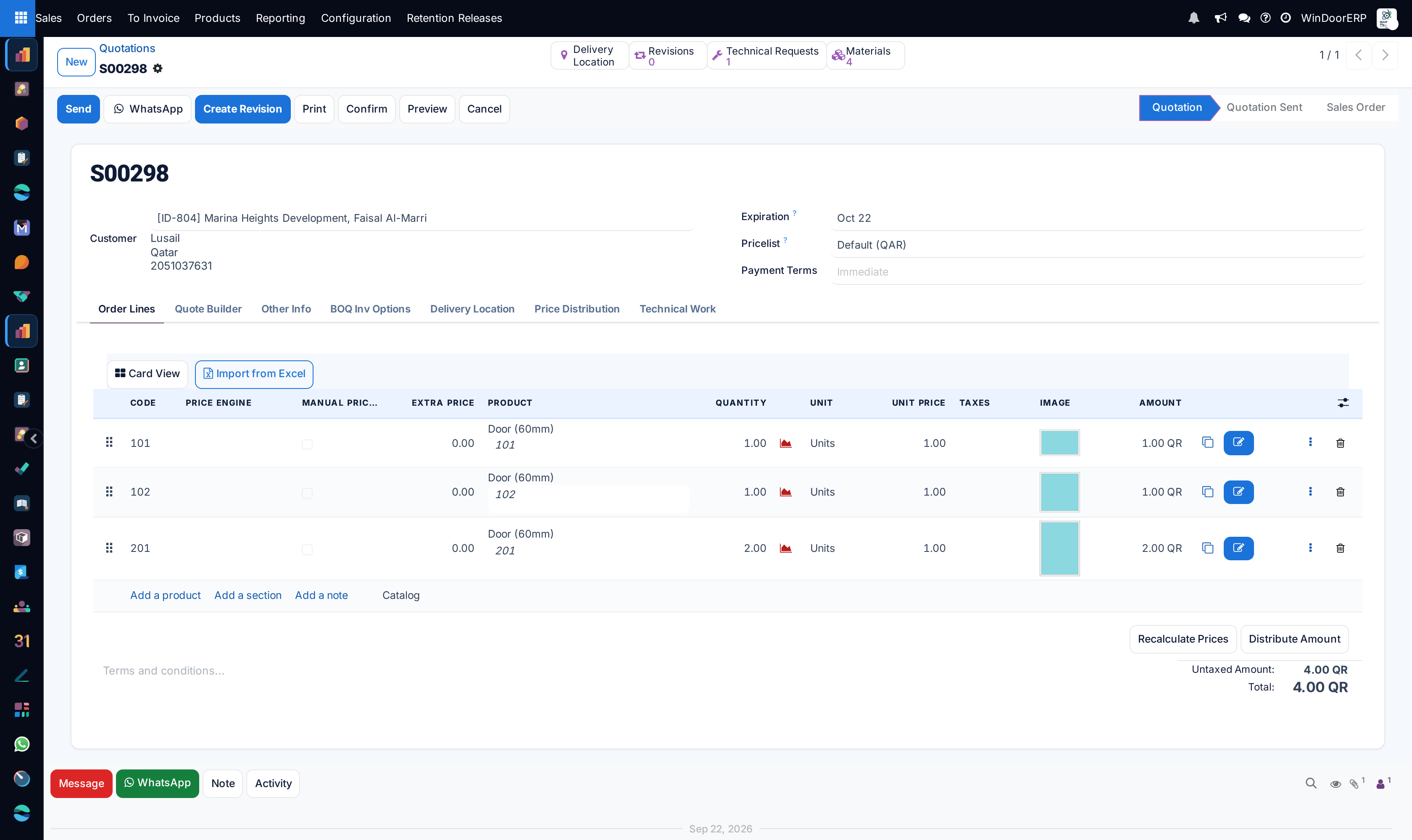
Open the quotation. On Order Lines, press Import from Excel, beside Card View. The quotation is saved first — a new one gets its number — and the upload page opens.
-
02
Press Download template (.xlsx) if you have no file yet, and fill in one row per opening type with its quantity. A schedule the architect made works as it is, as long as it has a header row with a width and a height.
-
03
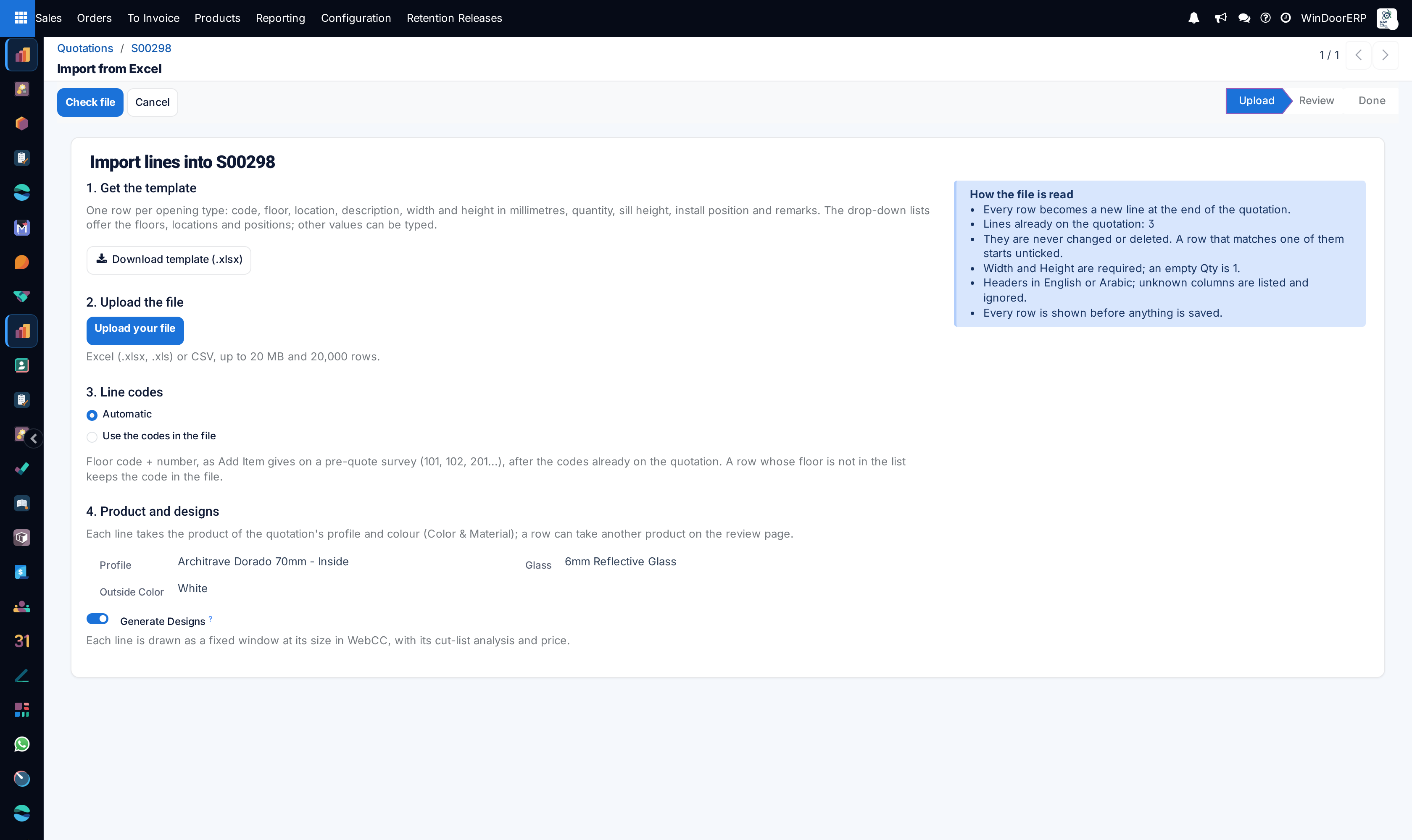
Upload the file, choose how the lines are coded under Line codes, check the profile and colours under Product and designs, and leave Generate Designs on to have every line drawn.
-
04
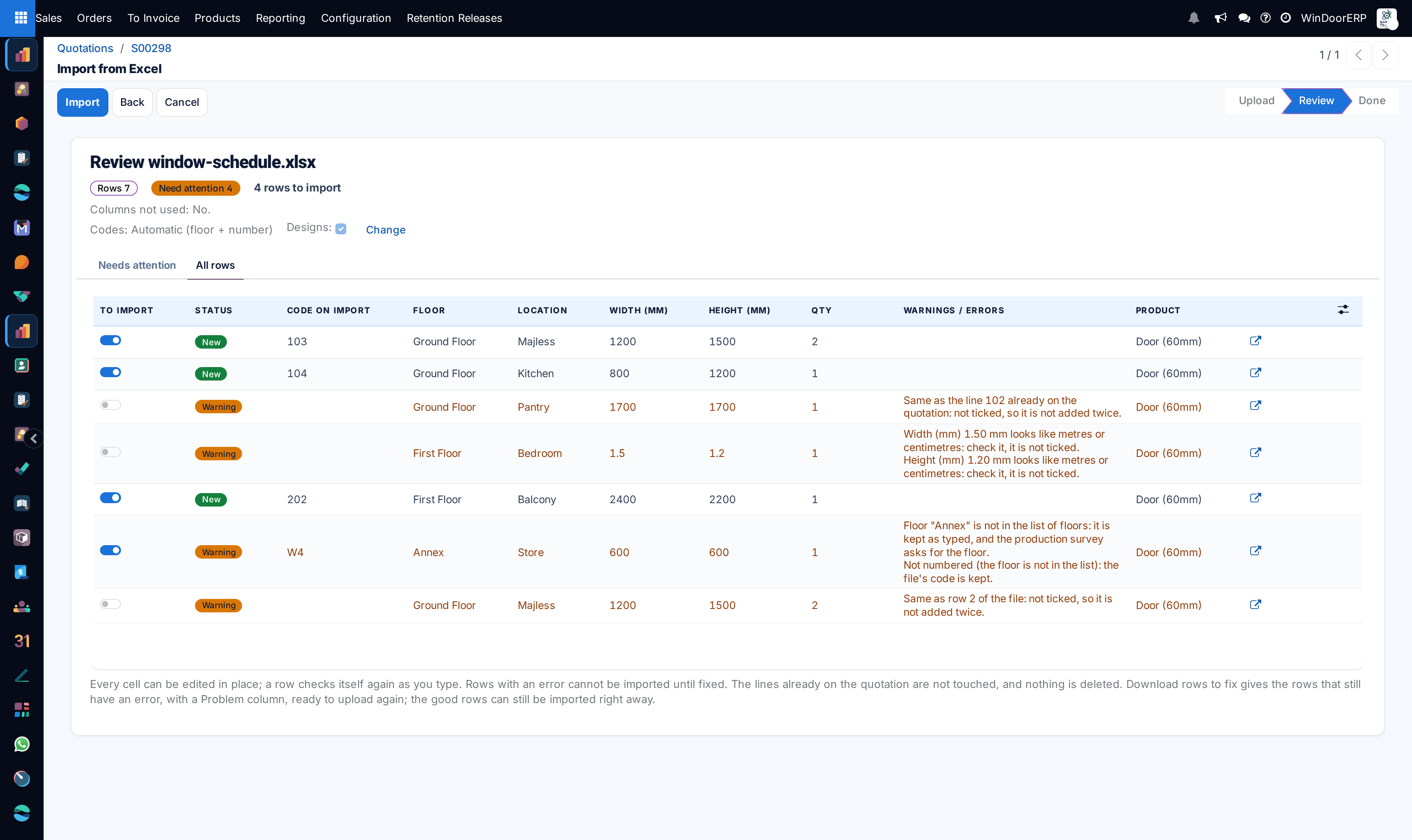
Press Check file. The review page lists every row with what the import will do with it; nothing is added yet.
-
05
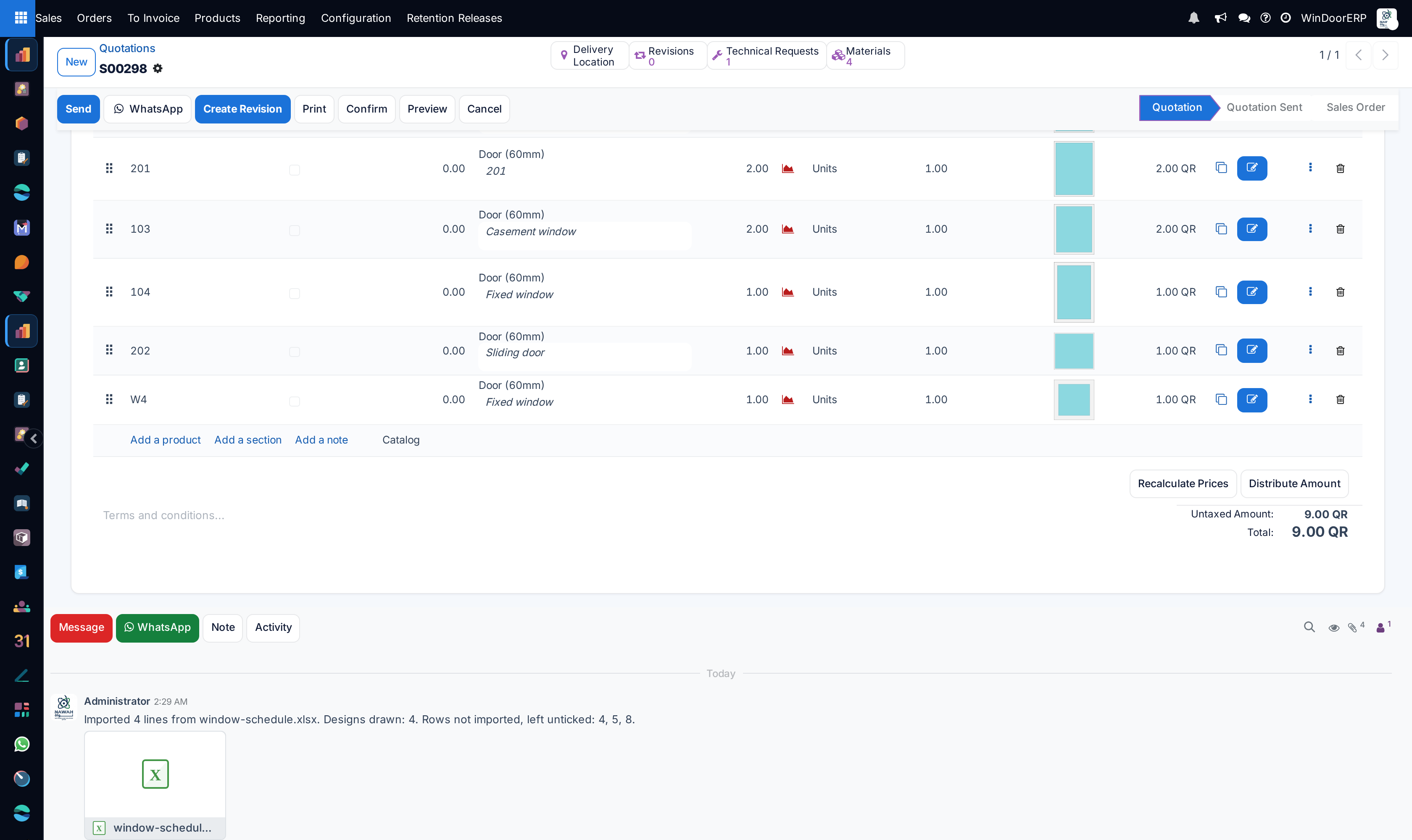
Correct what needs it, tick or untick rows, then press Import and confirm "Add the ticked rows at the end of the quotation?". You are back on the quotation, with the new lines at the end and a note in its chatter.
The upload page
The page, Import lines into …, has four numbered parts and, beside them, a box that sums up how the file is read and how many lines the quotation already has.
| Part | What it does |
|---|---|
| 1. Get the template | Download template (.xlsx) gives a workbook named after the quotation. Items is empty and is the only sheet read back; Example shows filled rows and is locked and never imported; Instructions sums up the rules. Floor, Location and Install Position offer drop-down lists of your floors, locations and positions, and other values can still be typed. |
| 2. Upload the file | Excel (.xlsx, .xls) or CSV, up to 20 MB and 20,000 rows. A file with macros (.xlsm) is refused. |
| 3. Line codes | Automatic (the default) or Use the codes in the file; see Line codes below. |
| 4. Product and designs | When the quotation has a profile and an outside colour, the page shows them with its inside colour, glass and accessories, read-only: every line takes the product they map to. When it has none yet, the page asks for Profile and Outside Color (offered only in the colours the profile is mapped to), Inside Color, Glass and Accessories, and the import writes them on the quotation. Generate Designs, on by default, draws each line as a fixed window at its size in WebCC, with its cut-list analysis and price. |
The columns
Headers are matched in English or Arabic, whatever their case or spacing, and in any order. A column the import does not know is listed on the review page under Columns not used and ignored; so is a No. column, which in a schedule is the row number, not a quantity.
| Column | What it takes |
|---|---|
| Code | Your code for the opening, such as W1. An architect's Mark or Ref column is read as the code. |
| Floor / Location | Picked from the list or typed; a Level column is read as the floor and a Room column as the location. A floor or location the lists know — by its name in any language or case, and a floor also by its code — is written as the list spells it; anything else is kept as typed, with a warning for a floor not in the list. |
| Description | The line's description; a Type column is read as the description. With no description, the line takes its code. |
| Width (mm), Height (mm) | Required, in millimetres. |
| Qty | Openings of this size, a whole number; empty is 1. |
| Sill Height (mm) | In millimetres; 0 is allowed. |
| Install Position | One of the window positions the surveys offer — Inside, Centre and Outside unless your company changed the list — picked or typed in either language; a Window Position or Position column is read here. |
| Remarks | Becomes the quotation line's note. |
Line codes
Automatic numbers the lines as a pre-quote survey does: the floor's code and two digits, per floor — 101, 102, then 201 on the next floor — continuing after the highest number that floor already uses on the quotation, and never twice in the file. Only ticked rows are numbered, in file order, so the Code on Import column changes as you tick and untick. A row whose floor is not in the list, has no floor, or is on a floor without a code keeps the code typed in the file and says why: "Not numbered (the floor is not in the list): the file's code is kept." Such a code must still be free on the quotation and in the file.
Use the codes in the file keeps W-01, D2 and the like exactly as typed; a row without a code gets none. A code already on the quotation, or on an earlier row, is an error: "Code … is already used on this quotation." or "Code … is already used by row … of the file." Switching the choice on the review page — Change beside Codes goes back to the upload page — checks every row again.
The review page
The review heads the page with the number of rows, how many need attention and what will be imported, the columns not used, and the code and design choices. Two tabs, Needs attention and All rows, list the rows with a tick, a status badge, the Code on Import, floor, location, width, height, quantity, the reason and the product; the code in the file, the description, sill height, install position and remarks can be shown from the column picker. Every cell can be edited in place and the row checks itself again; the open button on a row shows it in a dialog, Row …, with its Line, Size and Other fields.
| The row is | What happens |
|---|---|
| A possible duplicate | The same floor, location, width, height, sill height, install position and description as a line already on the quotation, or as an earlier row of the file: it starts unticked, with "Same as the line … already on the quotation: not ticked, so it is not added twice." or "Same as row … of the file: …". Two rows with different marks, W1 and W2, are not duplicates. When the file's codes are kept, rows are compared by code, floor, location and size. |
| A size that looks like metres | A width or height under 100 mm starts unticked: "… looks like metres or centimetres: check it, it is not ticked." |
| Worth checking | A size over 6,000 mm, a quantity over 50, or a floor not in the list: a warning, and the row stays ticked. |
| In error | A missing or unreadable width or height, a size of zero or below, a quantity that is not a whole number, a code already used, or no product for the profile and colour: the row cannot be imported until it is fixed. Download rows to fix gives those rows back as a file with a Problem column. |
What Import does
The ticked rows become new lines at the end of the quotation, in the file's order, after the lines already there; nothing is replaced. Each line gets the product (the row's own if you changed it), the quantity, the description, the code, the width, height and area, the sill height, floor, location, install position, the remarks as its note, and the names of the profile, colours and glass — as Create Quotation fills a line from a pre-quote survey. When the upload page chose the profile and colours, the import writes them on the quotation. With Generate Designs on, each line is drawn in WebCC and priced.
The file is attached to the quotation, and a chatter note says what happened: the file, how many lines were added and how many designs were drawn, then any lines drawn whose analysis failed, the lines left without a design, and the rows not imported — left unticked, or in error. A large file is saved in the background: more than 100 rows when designs are drawn, more than 1,000 when they are not. The page then shows Rows saved: … of …, you can leave it, and a second note says when it is done; meanwhile another import into the same quotation is refused.
After the import
The imported lines are ordinary quotation lines. Confirming the quotation raises its technical request and production survey as usual, and the survey's items are built from these lines, their floors matched to the floor list. When several lines share a code, the survey numbers their items apart — C1, C1 (2) — and lists them in its chatter under "These codes are on more than one order line, so their items were numbered apart:"; the installation's openings are numbered the same way.
Troubleshooting
Import from Excel is missing — the quotation is confirmed, cancelled or locked, the form is read-only, or you may not edit it or add lines to it.
"Lines can only be imported into a quotation (Quotation or Quotation Sent)." / "… is locked: no lines can be added to it." — the quotation was confirmed or locked while the page was open; lines are only imported into a quotation.
"Choose the profile and the outside colour of the quotation first." — the upload page needs them when the quotation has none. "No product: the quotation's profile and colour have none in Color & Material. Pick one." — map a product to the profile and colour, or pick a product on the row.
"No header row naming … was found in …" — the file has no header row the import recognises; start from the template or rename the columns.
"… is larger than 20 MB. Split it into smaller files.", "Files with macros (.xlsm) are not accepted. Save it as .xlsx.", "… could not be read. Check that it is a valid Excel or CSV file." — as they say.
"No row is ticked for import." — every row is unticked or in error. "An import into this quotation is still running. Wait for it to finish." — a large import is being saved in the background.
Common mistakes
- Leaving sizes in metres or centimetres — those rows start unticked, and ticking them adds windows a thousandth of their size.
- Ticking a flagged duplicate without reading it — the opening is then quoted twice.
- Leaving the floors of the schedule out of the floor list — their lines keep the file's codes, and the production survey later asks for each floor.
- Importing into the wrong quotation — the lines stay until you delete them; nothing is replaced.
Was this article helpful?
Thanks — your feedback helps.
Running a window or door factory?
Ask for a demo