Measure with a Bluetooth laser meter
What this does
A Bluetooth laser meter sends each measurement straight into the survey item on the phone, so the width and height are never misread or mistyped between the meter's display and the screen. It works in the field app — the measuring screen a surveyor reaches with Check in on site or Continue measuring in the portal, and the office opens with Mobile App on a survey or Measure in Mobile App on an item — through the round laser button in the bottom corner of the screen. The item then records that the size came from a laser meter, and from which one.
Before you start
- The meter speaks Bluetooth Low Energy and is one the app knows: a Leica DISTO or a STABILA LD 520, or — still to be confirmed on a real meter — a Bosch GLM-C or PLR-C. The table below lists them, and the test mode checks any other.
- The phone or computer runs Chrome or Edge, on Android or on a computer, and opens WindoorERP over HTTPS. Browsers on an iPhone or iPad cannot reach a Bluetooth device from a web page, and neither can Firefox.
- Bluetooth is on, on the phone and on the meter, and the meter is close by and switched on.
Connect and measure
-
01
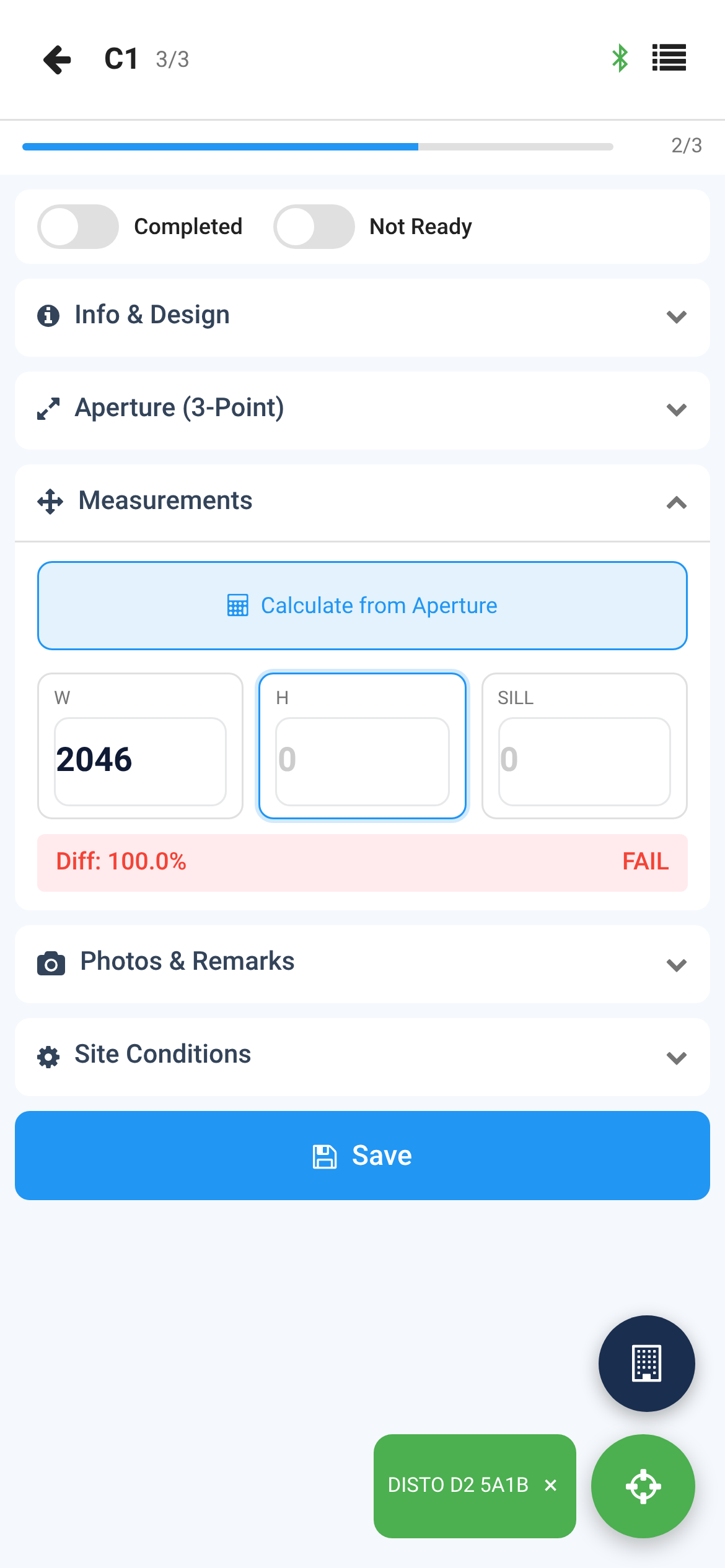
Open the measuring screen on the item to measure. The laser button, with its Bluetooth mark, sits in the bottom corner below the building button.
-
02
Tap the laser button. The browser opens its own list of the meters it can see; choose yours. When the link is up, "Connected to …" appears, the button turns green, a Bluetooth mark shows in the header, and a badge beside the button carries the meter's name and a ×.
-
03
Open Measurements and tap the box the reading is for — W first.
-
04
Take the reading. With a Leica DISTO or a STABILA LD 520, tap the laser button and the meter measures; with any other meter press the measure button on the meter itself, and tapping the laser button only says "Press the measure button on the laser meter." The figure lands in the box in millimetres, and H is chosen next.
-
05
Measure the height the same way, then save the item as usual. The item records Measured Via Laser meter and the meter's name as the Measuring Device.
-
06
When you are done, tap × on the badge to let the meter go. Closing the measuring screen lets it go too.
The meters the app knows
The browser's list shows only devices whose Bluetooth name starts with a make or word the app knows — DISTO, Leica, STABILA, LD 520, GLM, Bosch, PLR, TLM, Stanley, Laser, BLE, Distance or Meter. The name decides how a meter is read; a meter named like one make but built like another is tried against the other known makes before the link gives up.
| Meter | How it works here |
|---|---|
| Leica DISTO — D1, D2, D110, D510, X3, X4 | Each measurement arrives in metres and is turned into millimetres, so 2.456 m becomes 2456. The laser button sends the meter its measure command. |
| STABILA LD 520 | Works as a DISTO, measure command included. |
| Bosch GLM-C and PLR-C over Bluetooth Low Energy — GLM 50 C, PLR 30 C, PLR 40 C, PLR 50 C | On connecting, the app switches the meter's sync mode on, then reads each measurement the meter sends. This is built from public notes and is not yet confirmed on a real Bosch: run the test mode below once before relying on it. Measure with the meter's own button. |
| Bosch GLM 100 C, and other meters that use classic Bluetooth only | Cannot connect. A web page reaches only Bluetooth Low Energy devices, so such a meter never appears in the list; type its readings. |
| Stanley TLM, and other meters named Laser, BLE, Distance or Meter | Read as a number in metres, or as text such as 1.234 m, 1234mm or 4' 2", but not tested: check with the test mode first. Measure with the meter's own button. |
Phones and browsers
Where the browser cannot reach Bluetooth, the laser button is grey and tapping it says why, once: on an iPhone or iPad "iPhone and iPad browsers cannot connect to a laser meter. Type the measurements instead."; in Firefox and other browsers without Bluetooth "This browser cannot connect to a laser meter. Use Chrome or Edge on Android or a computer, or type the measurements."; and on a page not opened over HTTPS "HTTPS required. Access Odoo via HTTPS or localhost to use Bluetooth." Typing the sizes works on every phone.
Where a reading goes
A reading goes only into the box you chose, and only while that box is on screen and open for typing: never into a folded section, a read-only box or an item you have left. After a width, the height is next; after that, tap the next box yourself. A reading with no box chosen is refused with "Tap the box the reading is for (W, H…), then measure again." While the app is changing item — saving the one on screen and opening another, adding or splitting — a reading is refused with "Reading ignored while changing items: measure again." Readings of zero, below zero or above 500 m are ignored.
How the size arrived is recorded with it. A save that carries a laser reading records Measured Via Laser meter, the meter's name as the Measuring Device (up to 64 characters) and the time as Measured At, even when the reading only confirms the figure already there. Typing over a laser figure makes it Typed by hand again and forgets the meter. The office sees the same facts in the item's details on the survey form.
What the messages mean
| Message | What it means |
|---|---|
| "No laser meter found. Turn it on and switch on its Bluetooth, then try again." | The browser's list found no meter it knows. Check that the meter is on and its Bluetooth is on; a meter with another name shows only in the test mode. |
| "Bluetooth is off on this phone. Turn it on, then try again." | As it says. |
| "Bluetooth is blocked for this site. Allow it in the browser's site settings, then try again." | The browser was told not to let this site use Bluetooth. Allow it in the site's settings in the browser. |
| "Could not connect to the laser meter. Turn it off and on, then try again." | The browser could not open the list or the meter. |
| "The laser meter did not answer. Turn it off and on, keep it close, then try again." | The meter was chosen but the link did not start; the app lets it go, so the next try starts clean. |
| Nothing at all after closing the browser's list | You cancelled the choice: nothing is connected and nothing is said. |
| "Press the measure button on the laser meter." | This meter measures only from its own button. |
| "No reading came back. Press the measure button on the laser meter." | The measure command went out, but no reading arrived within three seconds. |
| "Laser meter disconnected. Trying to reconnect…" | The meter dropped — out of range, asleep or switched off. The app tries again after 2, 5 and 10 seconds; "Laser meter reconnected." says it worked. |
| "Could not reconnect the laser meter. Tap the laser button to connect it again." | All three tries failed. Wake the meter and connect it again. |
The laser test mode
When a meter does not behave, or before trusting a new model, the test mode shows exactly what it sends. Add ?laser_test=1 to the address of the measuring page — for example /my/surveys/<id>/measure?laser_test=1 — and open it. The mode then stays on in that browser tab until you open a page with ?laser_test=0 or close the tab.
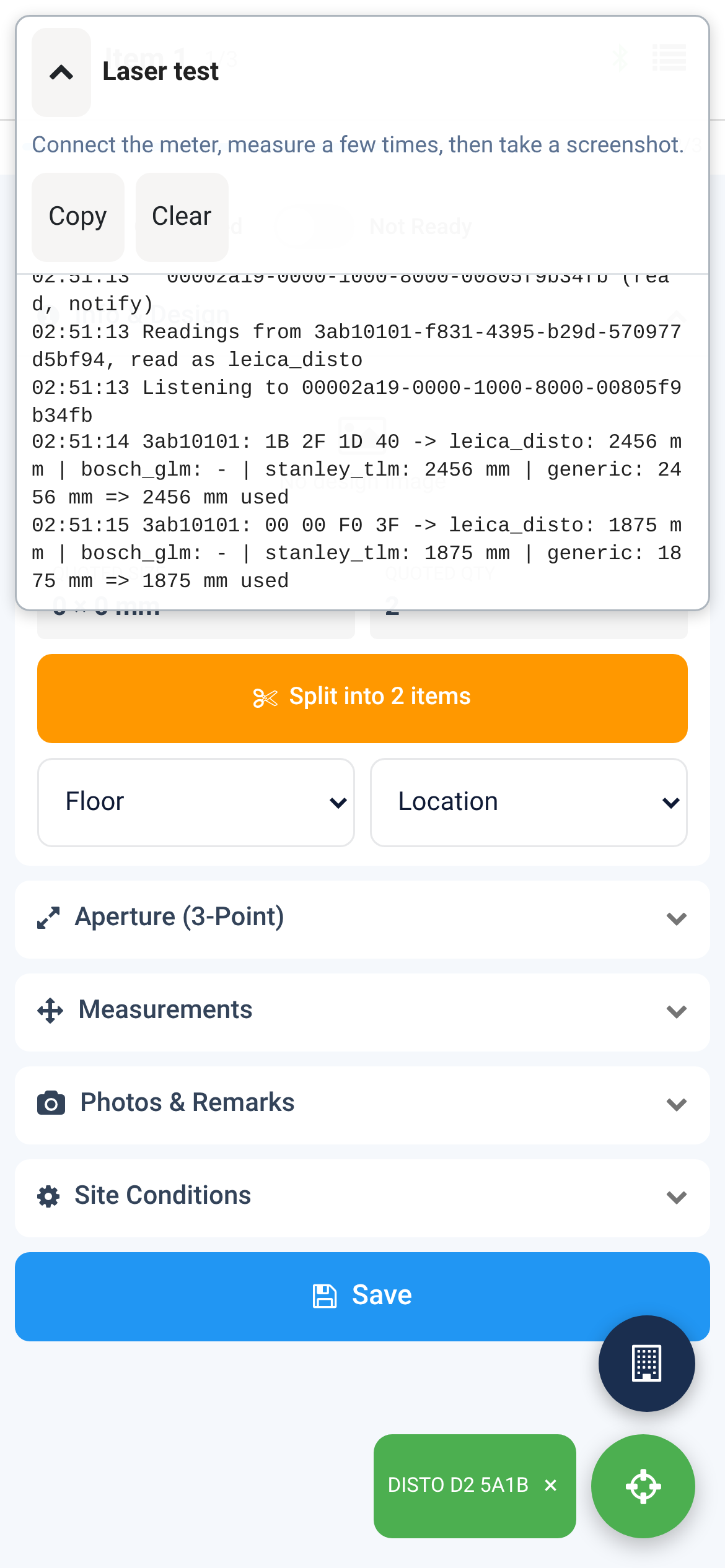
In test mode the browser's list shows every Bluetooth device nearby, not only known meters, and a Laser test panel opens across the top of the measuring screen with Copy, Clear and a button that folds it to its title and line count. With the time on each line, it records the device's name and the make it was read as; the services and characteristics the browser may read, and what each can do; the characteristic readings come from; and every frame the meter sends, in hexadecimal, with what each make would read from it and whether it was used — for example => 2456 mm used, or not a reading. An unknown meter stays connected, and every characteristic that sends anything is listened to. The panel keeps the last 300 lines and reads left to right in Arabic too.
Connect the meter, measure a few times, then take a screenshot — or press Copy and paste the text — and send it to the office or to support: that trace is what shows whether a model can be read. When copying is not allowed the panel says "Could not copy: take a screenshot instead." Clear empties the panel, and ?laser_test=0 ends the test mode.
Troubleshooting
The laser button is grey — this browser cannot reach Bluetooth; see Phones and browsers above. Use Chrome or Edge on Android, or type the sizes.
The meter does not appear in the browser's list — it is off, its Bluetooth is off, it uses classic Bluetooth only (a GLM 100 C, for one), or its name does not start with a make the app knows. Open the page with ?laser_test=1, which lists every device, and send the trace.
A Bosch connects but no reading arrives — the Bosch readings are built from public notes and not yet confirmed on a real meter. Measure a few times in the test mode and send the screenshot.
The reading went into the wrong box, or nowhere — tap the right box before measuring; after the height, no box is chosen until you tap one.
Common mistakes
- Measuring before tapping the box — the reading is refused, and has to be taken again.
- Tapping the laser button on a Bosch and waiting — only a DISTO or an LD 520 measures from the app; others measure from their own button.
- Tidying a laser figure by typing over it — the item then says the size was typed by hand.
- Leaving the phone on a page with
?laser_test=1for everyday work — the list then offers every Bluetooth device nearby.
Was this article helpful?
Thanks — your feedback helps.
Running a window or door factory?
Ask for a demo