Win the job
Add the openings
Why this step
Draw each opening the customer asked for. Quantities and sizes drive everything downstream.
What this does
Turns "three sliding windows, 1800 by 1400" into a real configured line: a drawing, a bill of profiles, glass, hardware, and a price the engine calculated rather than a person guessed.
Before you start
- The product on the line must be a fabricated one — that is what puts the design buttons on the line.
- Have the opening sizes as they were measured, and know whether they are structural opening or finished frame.
- The order must still be a quotation. Once it is confirmed the designer refuses to open: "Cannot modify design. Sale order is in sale state."
Steps
-
01
On the quotation, add a line and choose the fabricated product.
-
02
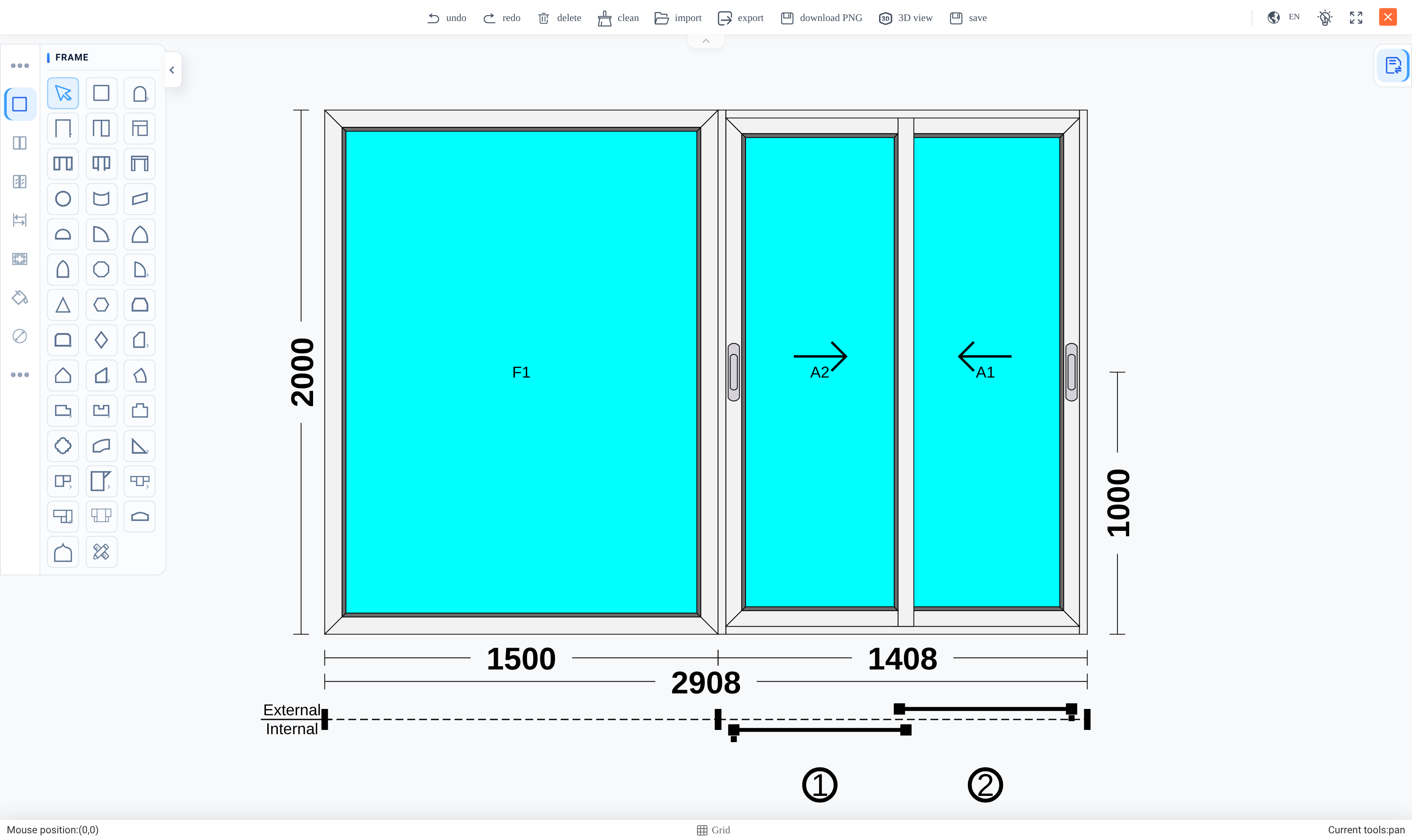
Click the Design button on the line — the pencil icon at the right-hand end of the row. The designer opens in a new browser tab, pre-loaded with the order's default profile system.
-
03
Choose the frame shape and set the overall width and height.
-
04
Split the frame into sashes and set which ones open, and which way they hand.
-
05
Pick the profile series and the glass for each panel — see Choose glass for an opening.
-
06
Click save in the designer toolbar. The design returns to the line and is analysed automatically.
-
07
Back on the quotation, check the Quantity and the unit price the analysis produced.
Saving is analysing
Every save from the designer runs a fresh design analysis on its way back — you do not have to ask for one. That is why the line's Analyze Design button (the wand icon) disappears after the first save: from then on the line carries an analysis, and the icon becomes View Analysis Details instead. To re-run one deliberately, open the analysis and use Re-analyze Design, or simply save again in the designer.
What the analysis produces
The Design Analysis is the bridge between drawing and factory. Each run creates a new numbered version, and the newest is the one the line points at. Behind it sit the numbers everyone downstream uses:
| Figure | Who needs it |
|---|---|
| Total Glass (m²) | The glass order, and much of the price. |
| Hardware Sets (pcs) and Door Sashes (pcs) | What the store must issue. |
| Cut-to-Cut Length (mm) and Cut Angles per bar | What the saw needs. |
| Material Cost, Labor Cost, Total Cost | What the job costs you — as distinct from what you quote. |
| Component tabs — frame bars, sash bars, glass panels, mullions, beads, hardware | The detailed bill behind all of the above. |
Important
The analysis writes the designer's own count and price attributes onto the line's Quantity and Unit Price. So a quantity you typed on the line can be replaced the next time the design is analysed. Set the quantity in the design, and treat the line's number as an output rather than an input.
One design, many units
A design describes one opening; the quantity says how many identical units of it to make. If the sizes differ, they are different designs — use the Duplicate icon on the line to copy the design onto a new line and adjust it there. The copy carries the drawing but not the previous analyses, so save it once to get its own. Duplication is refused on a confirmed order.
Troubleshooting
| Symptom | Cause and fix |
|---|---|
| "Order Locked" toast when opening the designer | The order is confirmed or cancelled. Designs are editable only while it is a quotation — create a revision if it must change. |
| "No design data to analyze. Please create a design first." | The line has no saved drawing yet. Open the designer and save once. |
| "Analysis failed. Please check the Notes field in the analysis record for error details." | The analysis ran but could not complete — open the analysis record and read its Notes; the usual cause is an incomplete design. |
| "Please Draw and Save Frist !" in the designer | The designer's own message (the typo is theirs): you asked to analyse before saving anything. Draw, save, then retry. |
| The line quantity changed by itself | An analysis wrote the design's count onto the line. Change the count in the design, not on the line. |
| The numbers look like the previous version of the drawing | The automatic analysis after that save failed, so the older version is still current. Check the analysis version and date, and re-analyse. |
Common mistakes
- Typing a quantity on the line and expecting it to survive the next analysis.
- Editing a design and closing the tab without saving — nothing reaches the line, and no analysis runs.
- Quoting from a line whose analysis failed, so the price belongs to an older drawing.
- Building several different sizes as one line because they are "the same window".
Checkpoint
Every opening on the enquiry has a line with a drawing and a price.